
 blog
blog
Best Local AI Tools 2026: 7 Picks for Private AI
Table of Contents
- What Are Local AI Tools in 2026?
- Local AI vs Cloud AI Security: Why Data Stays on Your PC
- How to Run Local LLMs on Windows: Hardware and Setup
- Best Local AI Tools 2026: Comparison Table
- Private AI Desktop Agents: What They Do and Who They Fit
- How to Choose the Right Local AI Tool
- Conclusion
- Frequently Asked Questions
Last Updated: October 22, 2026
What Are Local AI Tools in 2026?
Local AI tools are software applications that run large language models and other AI models directly on your own hardware instead of sending your prompts to a cloud provider.
That definition matters more than it did a year ago.
The category splits into three rough groups:
- Model runners that load and serve open-weights models locally
- Desktop agents that execute tasks on your PC, such as file organization and terminal commands
- Workflow tools that connect local models to documents, code, and retrieval pipelines
The 2026 shift is convergence: a runner is no longer just a chat window but a platform other tools plug into.
Local AI vs Cloud AI Security: Why Data Stays on Your PC
The security case for local AI comes down to one architectural fact: there is no network hop. A cloud model processes your prompt on someone else's hardware; a local model processes it on the machine that already holds your files.
That difference changes the threat model:
- No third-party retention. Your prompt is not stored in a vendor's logging system, so there is no retention window to audit and no data processing agreement to negotiate.
- No credential exposure. When a desktop agent needs to log in somewhere, a cloud design has to transmit or broker those credentials. A local vault design keeps them on disk and out of the model's context.
- Air-gapped operation is possible. Machines handling regulated or client-sensitive data can run entirely offline, which is often the only configuration an auditor will accept.
Data sovereignty is the practical version of this argument. If your work involves client records, legal documents, or source code you cannot upload, a local-first setup is a requirement, not a preference. The trade-off is real: you give up the largest frontier models for control.
How to Run Local LLMs on Windows: Hardware and Setup
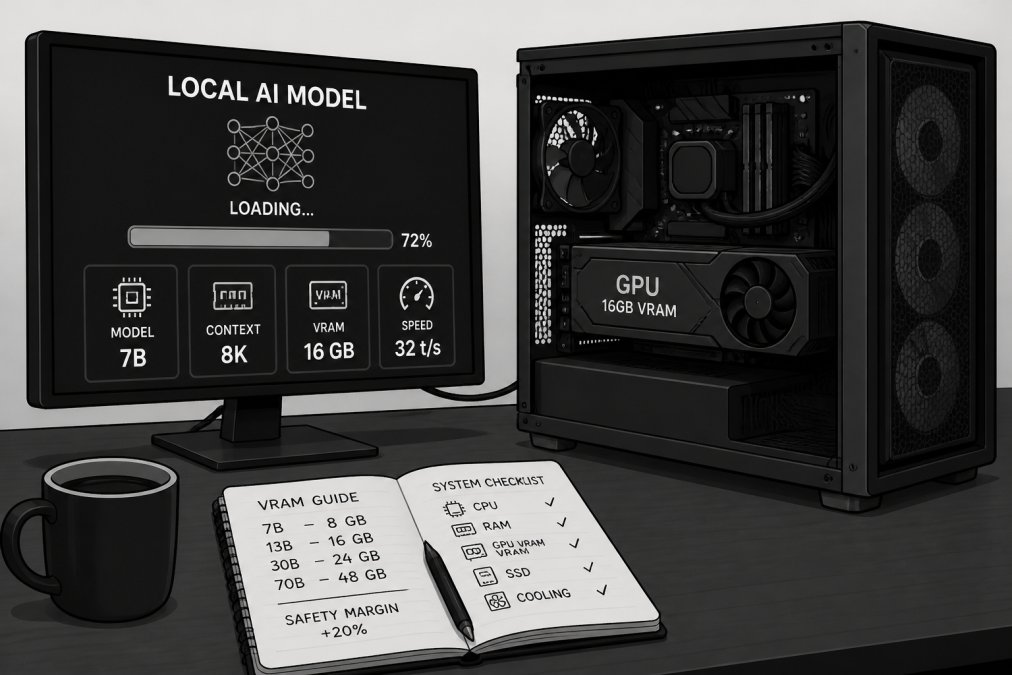
Running a local LLM on Windows in 2026 means checking your VRAM, installing a model runner, downloading a quantized model that fits, and tuning context length until token generation stays responsive. Most failures happen at the model step, not the install.
Your GPU's VRAM is the binding constraint, not CPU cores or system RAM, though both matter for larger models. A model's memory footprint scales with parameter count and quantization level, so a 7B model at 4-bit needs far less VRAM than at full precision (Quantifying the Capabilities of LLMs across Scale and Precision).
The setup sequence we recommend:
- Identify your VRAM. Check Task Manager's performance tab under GPU. This number decides which models are realistic.
- Install a runner. Model runners handle weight loading, GPU acceleration, and the local API endpoint. Pick one with a GUI if you are new to this.
- Download a quantized model. Start with a 4-bit quantization of a 7B to 8B model. It is the safest first fit on consumer hardware.
- Set context length deliberately. A large context window consumes VRAM before you generate a single token. Start smaller than you think you need.
- Benchmark token generation. Time a fixed prompt. If you are waiting seconds per word, drop to a smaller model or a lower quantization.
VRAM, Quantization, and Token Speed
Quantization stores model weights at reduced precision, trading a little output quality for a large reduction in memory use (Table of Contents).
Model weights dominate VRAM.
Weights are not the whole story.
A practical mapping for consumer hardware:
- 8 GB VRAM: a 7B to 8B model at 4-bit with a modest context window. Expect usable chat and drafting, not heavy reasoning.
- 12 GB VRAM: a 13B to 14B model at 4-bit, or an 8B model at 8-bit with room for context.
- 16 GB VRAM: a 13B model at 8-bit, or a 30B-class model at 4-bit with a trimmed context window.
- 24 GB VRAM: a 30B to 34B model at 4-bit with comfortable context, or a 13B model at higher precision.
These are starting points, not guarantees. Model architecture, attention implementation, and the runner's memory management all shift the numbers.
Token generation speed follows the same logic. Bigger models generate slower because every token requires a full pass through more weights.
Offline Capabilities and Local Integration
A local model is only as useful as the workflow it plugs into.
The offline test is simple. Disconnect from the network, restart the runner, and load a model. If it refuses to start or silently re-enables telemetry, you have found a tool that is local in name only.
Integration matters just as much. An OpenAI-compatible local endpoint lets your existing scripts, editors, and retrieval pipelines point at localhost instead of a cloud URL, the compatibility layer that turns a chat window into part of your workflow.
Best Local AI Tools 2026: Comparison Table
The best local AI tools in 2026 fall into five categories, and the right pick depends on whether you need a model runner, a desktop agent, a document pipeline, or a development environment.
| Category | What It Does | Best For | Watch Out For |
|---|---|---|---|
| Local desktop agent (Able) | Executes file, terminal, and login tasks on your PC | Privacy-focused Windows power users | Windows-only |
| Model runner with GUI | Loads and serves open-weights models | First-time local LLM users | Manual model selection |
| CLI model runner | Scriptable local inference and API endpoints | Developers and automation | No graphical interface |
| Local document analysis | RAG over your own files with a vector database | Researchers, legal, analysts | Index setup takes effort |
| Local coding assistant | Code completion and review against a local model | Software development teams | Needs strong GPU headroom |
The honest summary: a runner gives you a chat interface over a model. An agent gives you execution.
Free vs Enterprise Versions
Almost every category above has a free and a paid tier, and the gap is rarely model quality. It is support, update cadence, and whether the vendor takes responsibility in a regulated environment.
- Free tiers typically give you the runner or agent with community support, manual updates, and no formal data processing agreement. They are fine for personal use and experimentation.
- Paid and enterprise tiers add signed agreements, managed update channels, priority support, and sometimes centralized configuration for fleets of machines. For a team handling client data, the agreement is often the deciding factor, not the feature list.
- One-time purchase models sit between the two. They remove the subscription but usually leave you responsible for updates and support. For individual power users, that trade is often worth it.
A common pattern: prototype on a free tier, confirm the workflow fits, then move to a paid or one-time license once the tool touches sensitive files.
Performance Benchmarks: What to Measure
Benchmark sheets rarely match your hardware, model, or context length. Measure three things yourself:
- Time to first token. How long after you hit send does the first word appear? This is dominated by prompt processing and context length, and it is what makes a tool feel responsive or sluggish.
- Tokens per second. How fast does generation proceed once it starts? This is dominated by model size and whether the model fits in VRAM.
- Memory headroom. How much VRAM is left after a long session? A tool that runs well for ten minutes and then spills into system RAM will fail you on real work.
Run the same fixed prompt on each candidate tool with the same model and quantization. A stopwatch and Task Manager are enough.
Private AI Desktop Agents: What They Do and Who They Fit
This is where local AI stops being a novelty.
Able fits here. It runs as a Windows desktop application, keeps logins and credentials in a local vault the AI never sees, and executes terminal commands on your own machine.
Who this fits:
- Windows users with sensitive client data who cannot send files to a cloud model
- People who run terminal commands daily and want them automated safely
- Anyone who wants AI assistance without a recurring subscription
Who it does not fit: macOS and Linux users, and anyone who needs the largest frontier models for open-ended creative work.
How to Choose the Right Local AI Tool
Choosing a local AI tool starts with one question: do you need a model to talk to, or a system to act for you? Answer that and the shortlist collapses fast.
Work through these criteria in order:
- Task type. Chat and drafting point to a model runner. File, terminal, and workflow automation point to a desktop agent.
- Hardware ceiling. Match the model size to your VRAM, not to the benchmark leaderboard.
- Data sensitivity. If credentials or client files are involved, confirm the tool keeps them out of the model context entirely.
- Interface preference. GUI tools lower the setup cost; CLI tools reward scripting and repeatability.
- Licensing model. One-time purchase versus subscription changes the total cost quickly for daily users.
- Support and updates. A tool without an update path becomes a liability within a year.
Integration deserves its own line. A local tool that cannot reach your existing files, shell, or workflow is a demo, not a tool. Test integration before output quality.
Conclusion
The hard part of local AI in 2026 is not finding a tool but matching one to your hardware and workflow. Most people overestimate what their GPU can run and underestimate how much a well-configured agent can automate.
Able is a Windows desktop AI agent that organizes files, manages logins in a local vault the AI never sees, and runs terminal commands on your own machine, all under a one-time purchase license with a 7-day trial that needs no credit card.
Frequently Asked Questions
What is the best local AI model in 2026?
There is no single winner. Open-weights models in the 7B to 14B parameter range run well on 8GB to 12GB of VRAM after quantization, while 30B and larger models need 24GB or more. The right pick depends on your GPU, your context window needs, and whether you want a chat model or a tool-calling agent. Benchmark a few candidates on your own hardware before committing.
How do local AI tools protect my data compared to cloud AI?
Local AI tools run inference on your own machine, so prompts, files, and credentials never leave your PC. That is the core difference in local AI vs cloud AI security: cloud tools send your input to a remote server, while local tools keep it in RAM and on disk. For sensitive client data, an air-gapped setup with no outbound calls gives you the strongest guarantee.
What hardware do I need to run the best local AI tools in 2026?
A Windows 10 or 11 PC with a dedicated GPU is the practical baseline. 8GB of VRAM handles quantized 7B models, 12GB to 16GB opens up 13B to 14B models, and 24GB supports larger models and longer context windows. System RAM matters too: plan for at least 16GB, and 32GB if you run RAG with a vector database alongside the model.
Can I run AI agents locally without an internet connection?
Yes. Once the model weights are downloaded, local tools can run fully offline. Private AI desktop agents that execute file and terminal tasks work without a connection because the model and the tool logic live on your machine. Set up your model registry and prompts first, then disconnect to confirm nothing reaches out to the network.