
 how-to
Is Local AI Actually Private? 2026 Reality Check
Last Updated: October 23, 2026
Quick Summary
Local AI actually private depends on how the software is built and configured. Running a model locally does not automatically mean your data stays private, as local AI applications can still send data to the cloud through background services, telemetry, or automatic updates. True privacy requires active verification of network traffic, permissions, and data retention settings.
- Local AI protects against cloud provider surveillance and network eavesdropping but does not protect against device malware or compromise.
- Many local AI tools collect usage data, crash reports, or analytics without user knowledge, defeating the purpose of local processing.
- Verify network activity using Windows Task Manager Resource Monitor to check if your local AI application connects to unfamiliar servers.
- Use the privacy hardening checklist to download from official sources, verify file hashes, disable telemetry, and restrict application permissions.
- Air-gapped systems with no internet connection provide maximum offline AI security, though most users can maintain privacy through regular verification instead.
Table of Contents
- What Local AI Means and Why It Seems Private
- Does Local AI Send Data to the Cloud?
- Local AI vs Cloud AI Privacy: The Real Differences
- Local AI Security Risks You Need to Know About
- Offline AI Security: How to Verify True Local Processing
- The Real Threat Model: What Local AI Actually Protects
- Frequently Asked Questions
What Local AI Means and Why It Seems Private
Local AI is software that runs directly on your computer instead of sending your data to a cloud server. The model processes your prompts and files on your own machine.
The appeal is real. When you use cloud AI services, your prompts travel across the internet to someone else's servers. According to Stanford research on AI privacy risks, leading AI companies use user conversations for training, highlighting privacy risks with cloud-based systems. Local AI avoids that pipeline entirely.
But here's where it gets complicated. Running a model locally does not automatically mean your data stays private. The difference between local inference (processing happening on your device) and actual privacy protection is significant. Many people assume one equals the other. It doesn't.
Does Local AI Send Data to the Cloud?
The short answer: it depends on how the software is built and configured. A local AI application can still send data to the cloud through background services, telemetry, or automatic updates. Running the model locally is only part of the picture.
Many local AI tools collect usage data, crash reports, or analytics without the user knowing. The model itself stays on your machine, but your chat history, prompts, or file paths get logged elsewhere. This defeats the purpose of running AI locally in the first place.
Consider what happens when you use a local application. The core software runs on your device. But that software might phone home to check for updates, send diagnostic data, or sync settings to a cloud account. The same principle applies to local AI.
How to Check Network Traffic on Your Machine
Verifying whether your local AI tool is actually keeping data local requires checking network activity. Here's how:
- Open Windows Task Manager (press Ctrl+Shift+Esc)
- Go to the Performance tab and click "Open Resource Monitor"
- Select the Networking tab
- Run your local AI application and observe which servers it connects to
- Look for unfamiliar IP addresses or domain names
- Use an online IP lookup tool to identify where traffic is going
- Check if the domains belong to the AI company or third parties
This is the only way to verify what's actually happening. Don't trust marketing claims alone. Test it yourself.
Local AI vs Cloud AI Privacy: The Real Differences
The core difference between local AI vs cloud AI privacy comes down to where processing happens and where data is stored. Cloud AI sends everything to remote servers.
With cloud AI, your prompts travel over the internet and sit on someone else's servers.
Local AI keeps the model and initial processing on your machine. Your prompts don't travel to external servers for inference. But local AI doesn't eliminate privacy risks entirely.
The real advantage of local AI is control. You own the hardware. You can audit what's running. You can block network access if needed.
However, this only works if the local AI application is actually designed for privacy. Some local tools are just cloud AI wrapped in a local interface. They still send data elsewhere.
Local AI Security Risks You Need to Know About
Running AI locally introduces security challenges that cloud providers handle for you. You become responsible for protecting the model, your data, and your system.
Model downloads carry risk. When you download a large language model, you're trusting the source. Malicious actors can distribute poisoned models that steal data or install malware. Verify model sources and check file hashes before downloading.
Local storage is a target. If your computer gets compromised, attackers have direct access to your model weights, cached data, and prompts. Cloud providers invest heavily in security infrastructure. Your home machine probably doesn't have equivalent protection.
Permissions matter. Local AI applications run with whatever permissions you grant them. If you give broad file system access to an AI tool, it can read sensitive files you didn't intend to expose. Restrict permissions to only what the application actually needs.
Internet Connectivity and Background Services
Even offline-capable local AI tools often run background services that connect to the internet. These services might check for updates, validate licenses, or send telemetry. Each connection is a potential data leak.
Some local AI applications require internet connectivity for initial setup or periodic authentication. During these connections, your system might transmit metadata about your device, your usage patterns, or your files.
Background services are the biggest privacy risk with local AI. They run quietly without user attention. You might not notice what data they're sending or where it's going. This is why network traffic auditing is essential.
Device Security and Local Vulnerabilities
Your device's security directly impacts your local AI privacy. If your Windows machine has malware, viruses, or unpatched vulnerabilities, an attacker can access your local AI models and data.
Keep your operating system updated. Enable Windows Defender or your preferred antivirus. Use a firewall to block unnecessary network connections. These basics matter more with local AI than with cloud services because you're now the security provider.
Local device vulnerabilities include weak passwords, unencrypted storage, and unpatched software. An attacker who gains access to your machine can read everything the local AI application can read. This includes prompts, model weights, cached data, and credentials.
Offline AI Security: How to Verify True Local Processing
True offline AI means your system never connects to the internet while processing sensitive data. This requires intentional configuration. You can't just assume it happens automatically.
An air-gapped system is a computer with no network connection. For maximum privacy, some users run local AI on a dedicated machine disconnected from the internet. This eliminates cloud data transmission entirely. But most people can't maintain a separate machine just for AI.
For typical users, verification is more practical. Check network traffic regularly. Monitor what your local AI application is doing. Review its permissions. Understand its data retention policies. This ongoing verification is how you maintain privacy with local AI.
Step-by-Step Privacy Hardening Checklist
Use this checklist to verify and harden your local AI setup:
- Download the local AI application from the official source only
- Verify the file hash matches the publisher's published hash
- Install the application with minimal permissions (not Administrator if possible)
- Open Windows Task Manager and monitor network activity while using the app
- Document all external IP addresses and domain names the app connects to
- Use an IP lookup tool to identify where traffic is going
- Check the application's settings for telemetry, analytics, or data sharing options
- Disable any cloud sync, automatic updates, or analytics features
- Review the privacy policy and data retention terms
- Set up a firewall rule to block the application from accessing the internet (if it doesn't need it)
- Test the application offline to confirm it still functions
- Check your local storage for cached prompts, logs, or temporary files
- Delete cache files regularly or configure the app to not store them
- Review application permissions in Windows Settings and restrict file system access
- Keep your operating system and all software updated with security patches
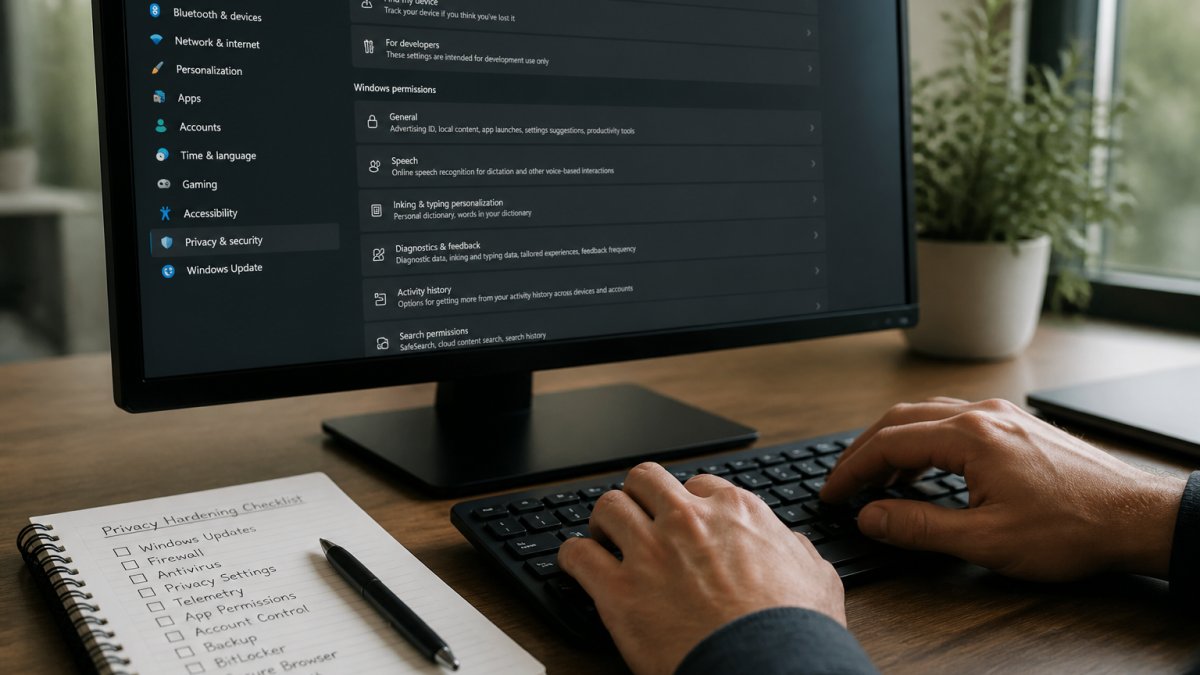
This checklist transforms local AI from a theoretical privacy solution into a verified one. The work is yours to do, but the control is yours to keep.
The Real Threat Model: What Local AI Actually Protects
Understanding what local AI protects requires defining a threat model. Different users face different risks.
Threat Model 1: Cloud Provider Surveillance. You want to avoid sending your prompts to a cloud AI company.
Threat Model 2: Network Eavesdropping. You want to prevent someone intercepting your prompts while they travel over the internet.
Threat Model 3: Malware or Compromised Device. You want to prevent malware from stealing your prompts or model data.
Local AI is powerful for specific threats but incomplete for others.
At Able, we designed local processing specifically to address these concerns. Verify what's happening on your system. Trust, but verify.
Local AI offers genuine privacy advantages over cloud AI, but only when configured correctly.
Ready to take control of your AI? Able runs entirely on your Windows PC with no cloud data transmission.
Frequently Asked Questions
Is local AI actually private, or can it still send my data to the internet?
Local AI can be private if your setup is configured correctly, but it's not automatic. Running a model locally means inference happens on your device, not on a cloud server. However, the application itself can still send data if it has internet access and logging enabled. In January 2026, security researchers found over 175,000 local AI servers exposed to the public internet, showing that local processing alone doesn't guarantee privacy. You must verify network traffic, disable telemetry, and ensure the application isn't logging prompts or data in the background.
Can a local AI model access my files, passwords, or sensitive credentials on my computer?
A local AI model can access any data your user account has permission to read—including files, folders, and cached passwords—unless the application is specifically designed to prevent it. This is a device security issue, not a privacy one. Applications like Able address this by storing credentials in an isolated local vault that the AI model never sees, keeping sensitive information separate from the inference process. Standard local AI tools don't have this protection, so credentials and sensitive files remain at risk if the model or application is compromised.
How do I know if a local AI tool is really processing data offline and not sending it to the cloud?
Check network traffic using Windows built-in tools (Resource Monitor or Wireshark) while the AI is running. Look for outbound connections to non-local IP addresses. Review the application's privacy policy and check its source code if available. Disable internet access temporarily and verify the tool still works—true offline AI functions without a network connection. Also examine the application's permissions: does it request internet access? Does it log or cache prompts? Able's one-time purchase model and local vault design are built specifically to keep data on your device, but any local AI tool should be audited before using it with sensitive information.
What's the difference between local AI security and cloud AI security for handling sensitive data?
Local AI keeps prompts and inference on your hardware, eliminating the risk that a cloud provider logs or trains on your data. Cloud AI (like ChatGPT or Claude) processes data on third-party servers—Stanford HAI research shows leading AI companies use conversations for training, creating privacy exposure. However, local AI introduces device security risks: malware, unpatched operating systems, or poorly designed applications can still leak data. Local AI is more private if your device is secure; cloud AI is more private only if you trust the provider's data handling. For sensitive client data or proprietary information, local AI with proper hardening is the stronger choice.