
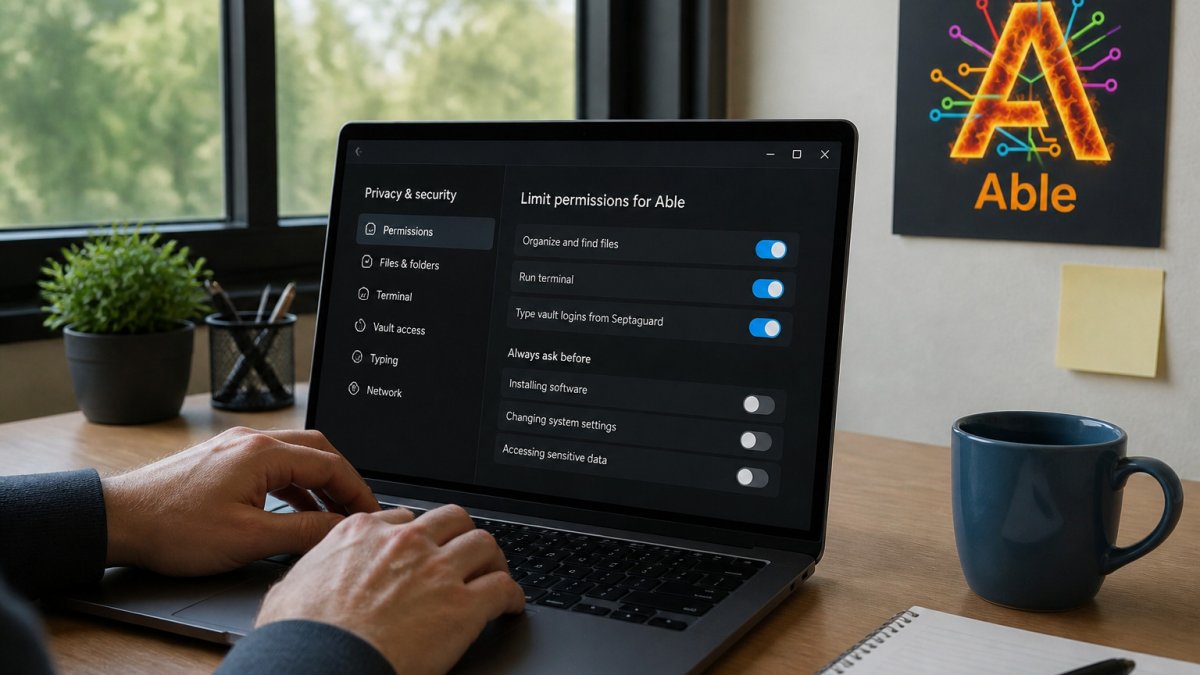
 how-to
How to Limit AI Agent Permissions on Your Windows PC
Last Updated: October 29, 2026
Quick Summary
To limit AI agent permissions on Windows, start with zero access, then grant only the specific folders, apps, and commands each task needs. Require manual approval for terminal commands and deletions, keep vault credentials away from the model, and revoke unused access regularly.
- Map each job to the exact files, folders, and commands it requires before granting any access.
- Scope file access to named folders instead of the whole user profile or drive root.
- Require confirmation before the agent runs terminal commands, deletes files, or moves data outside approved folders.
- Keep passwords and tokens out of chat so the AI model never receives them.
- Review permissions monthly, remove unused access, and test that out-of-scope requests are refused.
Table of Contents
- Why AI Agent Permissions Need Limits Before You Install Anything
- Step 1: Map What the Agent Actually Needs to Touch
- Step 2: Scope File Access to Specific Folders
- Step 3: Put Approval Gates on Terminal and Destructive Actions
- Step 4: Keep Vault Credentials Away From the Model
- Step 5: Review Permissions, Revoke Unused Access, and Test Boundaries
- Setting Up Able With Limited Permissions This Week
- Frequently Asked Questions
Why AI Agent Permissions Need Limits Before You Install Anything
To limit AI agent permissions on your Windows PC, decide what the agent can touch before you say yes to anything. An AI agent that can move files, run terminal commands, or reach stored logins can cause real damage if it acts on a bad instruction. Setting boundaries first is the cheapest protection you will ever get.
Consider what the risk looks like in practice. Recent survey work found that 41% of AI users have tried an agent, and 32% have let one act without a final sign-off (Digital Applied 2026 survey of 5,067 US adults on AI agent access). Many people hand over more access than they intended, simply because a prompt asked for it.
Permissions also tend to pile up. Research analyzing enterprise access found that 96% of permissions went unused, and those unused rights can be inherited by automated agents (Oso research on unused enterprise permissions). An agent does not need your whole drive. It needs a short, named list of places and actions.
Here is the rule we use at Able:
- Start with zero access
- Add only what a specific task needs
- Remove access when the task ends
Able runs on this Windows PC and acts only after you say yes. That keeps access narrow, because you decide each boundary yourself.
Step 1: Map What the Agent Actually Needs to Touch
Write down the real jobs you want the agent to do, then list the files, folders, apps, and commands each job requires. This takes about 15 minutes and prevents the most common mistake: granting access to everything "just in case."
Most people find they need far less than they thought. A file-sorting job needs one source folder and one destination folder. It does not need your documents, your browser profile, or your password store.
A simple mapping sheet:
- Job: Sort new downloads by file type
- Reads from:
Downloads - Writes to:
Downloads\Sorted - Runs commands: None
- Touches credentials: No
Keep one row per job. If a row needs "everything," split it into smaller tasks.
Step 2: Scope File Access to Specific Folders
Limit the agent to the folders on your map, and nothing else. On Windows, you can set this up by granting access only to named folders instead of the whole user profile or drive root.
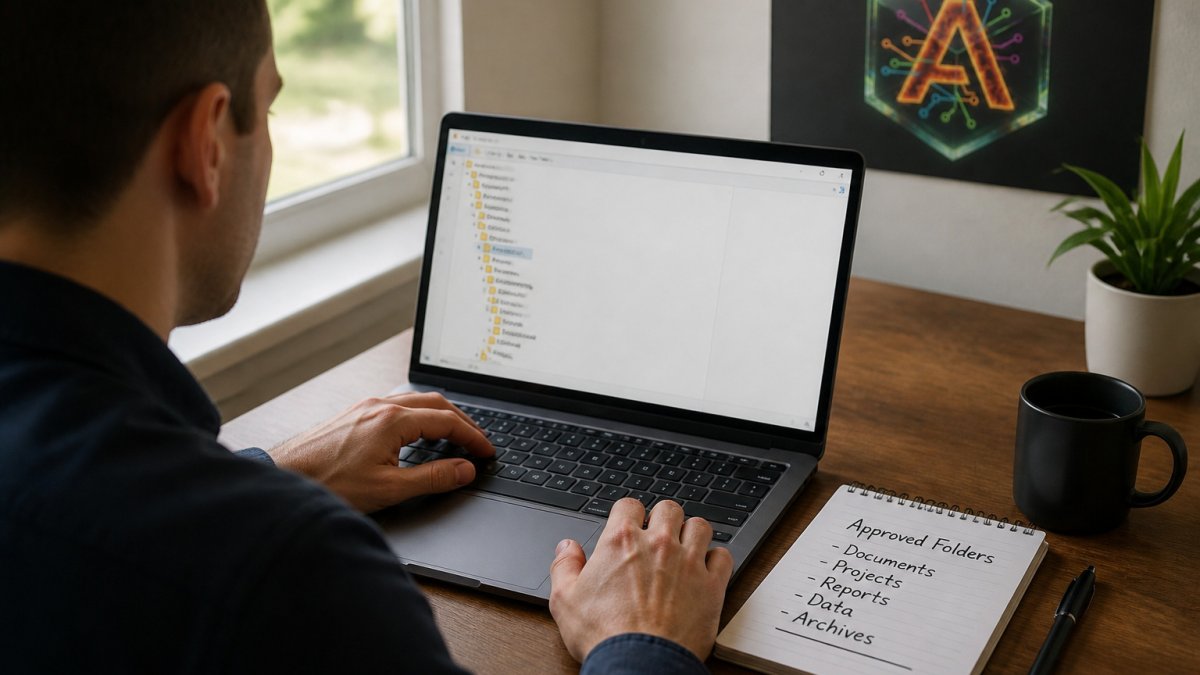
A reviewer should be able to see, at a glance, which folder paths are approved. A short written list works well. Here is an example:
Approved read: C:\Users\you\Downloads Approved write: C:\Users\you\Downloads\Sorted Denied: Documents, Desktop, AppData, Drive root Check the list against your actual folder structure. Shared or synced folders, such as OneDrive or a network drive, can expose more than you expect. Leave them out unless a task truly needs them.
Able works inside the folders you approve. Organizing and finding files work without a cloud brain, but the folder list still controls what Able can see.
Step 3: Put Approval Gates on Terminal and Destructive Actions
Require a manual confirmation before the agent runs a terminal command, deletes anything, moves files out of an approved folder, or sends data outward. You can see a business workflow with approval gates built in. Reading a file is usually low risk. Deleting, overwriting, and executing commands are not.
Sort actions into three groups:
- Allowed without asking: Reading files in approved folders
- Ask first: Renaming, moving, or creating files
- Always blocked or always confirmed: Deleting files, running scripts, changing system settings
Watch out: a confirmation prompt you click through without reading gives you no protection. Read the exact command or path each time before you approve it.
Step 4: Keep Vault Credentials Away From the Model
Store passwords and tokens where the AI model never receives them. Give the agent a way to use a credential at the moment of login, without the secret passing through the conversation.
Able types vault logins on this PC after you say yes, so the model never sees the vault password. Chat and research still go to cloud models over the internet, so keep credentials out of any prompt you type. Able is not fully offline, and chat requests leave your machine.
Practical steps:
- Never paste passwords, API keys, or recovery codes into a chat, and read a deeper guide to keeping AI files private on Windows.
- Use a dedicated vault or password manager, separate from the agent's working folders
- Rotate any key you suspect was exposed
Step 5: Review Permissions, Revoke Unused Access, and Test Boundaries
Set a regular check, at least once a month, to remove access you no longer use. Then test that the limits hold. A boundary you have never tested is only a guess.
Run a simple test: ask the agent to read a file outside your approved folders. It should refuse or ask for permission. Try one destructive action in a throwaway folder and confirm the approval gate appears.
Review checklist:
- Every approved folder still matches an active task
- No approved folder covers the drive root or your full profile
- Terminal and delete actions still require confirmation
- No credentials appear in chat history
- Out-of-scope test requests are refused
Use this checklist to confirm that every permission boundary still holds.
| Check | Expected result | How often |
|---|---|---|
| Approved folders | Each folder matches an active task | Monthly |
| Drive root or full profile | Not approved | Monthly |
| Terminal and delete actions | Still require confirmation | Monthly |
| Credentials in chat history | None present | Monthly |
| Out-of-scope test request | Refused or asks permission | Monthly |
Setting Up Able With Limited Permissions This Week
You can apply every step above in one week. Start with a single low-risk job, such as sorting downloads, and keep the folder list to two entries. Add one task at a time, and test each boundary before you widen anything.
Able is a licensed Windows 10/11 desktop agent from Apex Empire Inc. It is one-time software. The trial runs 3 days with no card required, so you can check these boundaries on your own machine before you commit. Mac and Linux versions are planned, not shipping yet.
The ability to limit what an agent can do is what makes it safe to use. With Able, you decide each permission, and that keeps you in control of your own PC.
Ready to try it? GET ABLE
Frequently Asked Questions
Why is it important to restrict AI agent permissions?
An AI agent with broad access can move, overwrite or delete files you never meant to touch, and it can run commands on your PC once it has terminal rights. Limiting permissions keeps the blast radius small if a prompt is misread or an external instruction tries to steer the agent. With Able, you decide which folders and actions are in scope and approve anything that goes beyond them, so the agent stays inside the job you gave it.
How does Able handle user consent for desktop tasks?
Able works on this PC after you say yes. Before it organizes files, runs a terminal command or types a vault login, you approve the specific action. That gate is the core of how you keep AI agent access control practical on Windows: you are not handing over a standing key, you are confirming each job. The cloud model used for chat or planning does not gain direct access to your vault passwords.
Can I limit an AI agent's access to specific folders?
Yes. Start by listing the folders the task genuinely needs, such as a Downloads subfolder or a project directory, and give Able only those paths. Keep Documents, Desktop and system folders out of scope unless a specific job requires them. Review the folder list each time the task changes, and remove paths you no longer use so access stays narrow over time.
What is the difference between local AI agents and cloud-based AI?
Local model tools such as Ollama or LM Studio run the model on your machine, while cloud-based assistants send your prompts to a remote model. Able is a Windows desktop agent that handles files, terminal commands and vault logins on this PC, and it uses cloud brains such as Claude, Gemini, Grok or Kimi for thinking over the internet. Able is not fully offline: organizing, finding and vault work run without a brain, but chat needs internet.