
 how-to
How to Keep AI Files Private on Your Windows PC
Last Updated: October 28, 2026
Quick Summary
To keep AI files private, sort files by risk before uploading anything: redact identifiers, keep high-risk documents like contracts and medical records on your PC, and never paste passwords or keys into a chat box. The strongest approach is to stop moving sensitive files into chat at all and let Able work on them locally on your Windows machine after you approve each step.
- Files that fail the risk questions get redacted or locked down, not uploaded.
- Passwords, vault exports, bank numbers, and private keys should never enter a cloud AI.
- Replace identifiers with placeholders and strip metadata before any upload.
- Turn off model training, delete chats and uploaded files separately, then verify the delete.
- Able's organize, find, and vault jobs run on this PC; chat still needs the internet.
Table of Contents
- Start With a File-by-File Risk Assessment
- What Not to Share With AI, Ever
- How to Remove Personal Information From Documents Before Uploading
- How to Use AI Safely With Confidential Documents
- Local AI Privacy: What Runs on Your PC and What Still Leaves It
- Check Retention Settings, Then Verify the Delete Actually Worked
- Lock Down Access With Able on Your Windows Desktop
- Frequently Asked Questions
Start With a File-by-File Risk Assessment
Most people treat every file the same when they sit down to work with an AI tool, even when the goal is to keep AI files private. That is the mistake. The better move is to sort files by risk first, then decide what touches a cloud model at all.
Before you upload anything, ask three questions about the file.
The Three-Question Decision Tree
- Does this file contain a name, address, account number, or ID? If yes, redact before upload.
- Would a leak of this file hurt someone, including you? If yes, it does not go to a cloud model.
- Can the job be done on this PC without a cloud brain? If yes, keep it local.
A file that fails question one gets cleaned. A file that fails question two gets locked down.
Here is how that splits in practice:
| File type | Risk level | Best handling |
|---|---|---|
| Public notes, drafts, ideas | Low | Cloud chat is fine |
| Redacted reports, summaries | Medium | Redact, then upload |
| Client contracts, payroll, medical records | High | Keep local, use an agent on this PC |
| Passwords, vault exports, keys | Critical | Never upload, never paste |
The logic is simple. Risk assessment is not a one-time policy. It is a habit you run file by file.
What Not to Share With AI, Ever
Some data should never enter a chat box. Full stop. No prompt, no clever wording, and no "just this once" makes it safe.
Here is the short list of things to keep off any cloud AI:
- Passwords and vault exports
- Full bank or card numbers
- Government ID numbers and scans
- Medical records tied to a real person
Privacy guidance from Webroot's tips for keeping data private when using AI makes the same point: review what a vendor does with your data, and keep private information out of prompts.
The reason is not paranoia. Stanford HAI's work on privacy in the AI era notes that chatbots and large language models raise fresh privacy questions about how personal information gets handled.
So treat the chat box like a public room. If you would not read it aloud there, do not type it in.
How to Remove Personal Information From Documents Before Uploading
Redaction is the process of removing or hiding personal identifiers from a file before it leaves your machine. Done right, it lets you use AI on the useful parts of a document without exposing the people named inside it.
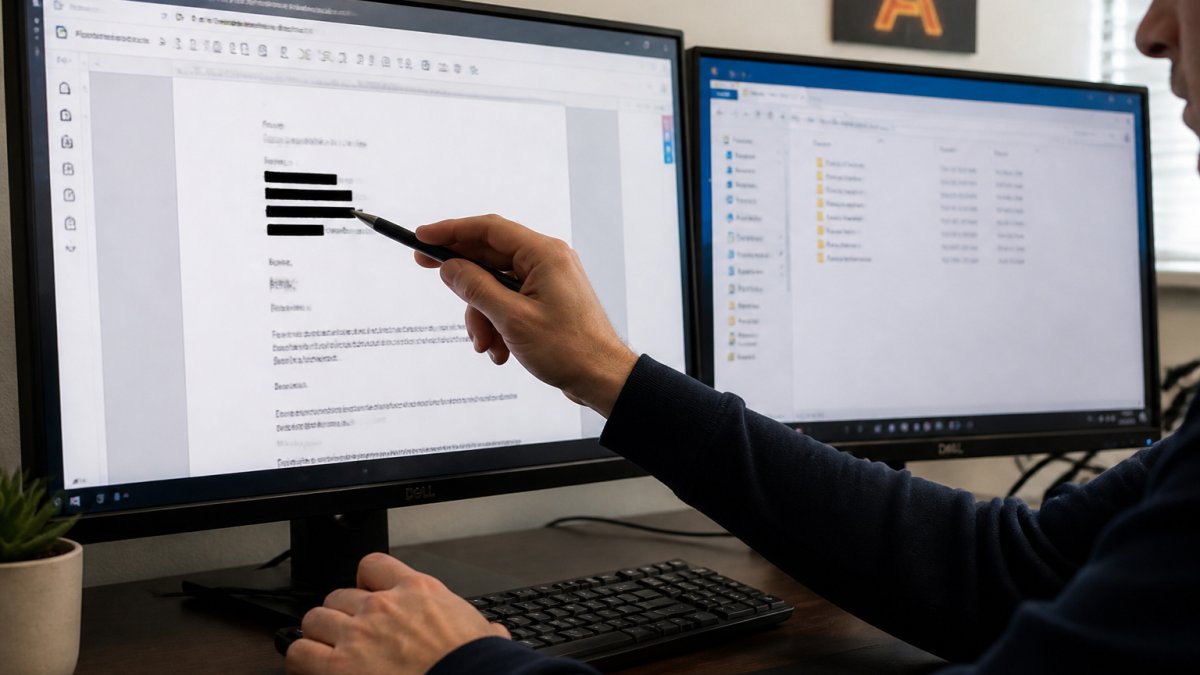
A Four-Step Redaction Workflow That Actually Holds
- Inventory the identifiers first. Before you touch the file, list what must go: names, addresses, account numbers, dates of birth, ID numbers, email addresses, phone numbers, and any free-text field that could re-identify someone (job title plus city, for example).
- Replace, don't cover. In Word, use Find and Replace to swap names for placeholders like [CLIENT] and [ACCOUNT]. In PDFs, use a real redaction tool that deletes the underlying text, not a shape drawn over it, then flatten and re-save. In spreadsheets, delete entire hidden columns and rows rather than hiding them, and clear comments and extra sheets.
- Strip metadata. File properties can carry author names, edit history, file paths, and sometimes the original filename. Clear document properties before upload. In Word, check File > Info > Inspect Document. In PDFs, use the redaction tool's metadata scrub or re-print to a fresh PDF. In images, remove EXIF data (GPS coordinates are the usual leak).
- Verify by extraction. Copy the redacted text into a plain text editor and search for each identifier on your list. If any survive, the redaction failed. For PDFs, also try selecting the blacked-out area, if text highlights, it is still live.
Format-Specific Gotchas
For a deeper walkthrough, our guide on how to protect personal data when using AI covers the full process. And if the file must stay whole, a signed contract, a medical record, the safer move is to keep it on this PC and let Able work on it locally after you approve each step, rather than redacting and hoping nothing slipped through. You can see the split on the Windows desktop AI agent page.
How to Use AI Safely With Confidential Documents
You can use AI on confidential work without gambling the file. The trick is to separate the thinking from the data.
A practical approach:
- Summarize the sensitive parts yourself, in plain words, with no names.
- Ask the AI to work on the summary, not the source file.
- Keep the original file on your PC, never in the chat.
- Use an agent that acts on local files after you approve each step.
That last point matters. An agent that runs on your Windows machine, with your permission, can sort and find files without shipping them to a model.
The split is honest. That is not fully offline, and we say so plainly on the Windows desktop AI agent page.
Local AI Privacy: What Runs on Your PC and What Still Leaves It
Local AI privacy means the work that stays on your machine versus the work that travels to a cloud model.
Here is the reality check. Running a model locally keeps your prompts on your hardware.
So ask two questions about any tool:
- Which jobs run on this PC?
- Which jobs need the internet?
For Able, the answer is clear. If you want the full breakdown of what local AI really protects, read our reality check on whether local AI is actually private.
A simple way to reduce exposure: give any agent access to one dedicated folder, not your whole drive. That keeps the blast radius small if something goes wrong.
Check Retention Settings, Then Verify the Delete Actually Worked
Deleting a chat is not the same as deleting the data. Many AI tools keep chat history for a retention period, and some use past chats to improve models unless you opt out. The controls you see also depend on which kind of account you are on, and that difference is where most people get burned.
Consumer vs. Business vs. Enterprise Accounts
A common pattern across major AI providers:
- Consumer accounts often default to using your chats for model training unless you turn it off, and retention windows are set by the vendor. You usually get a single toggle in settings.
- Business and team accounts typically exclude your data from training by default and offer admin controls, but retention still follows the contract. Check whether an admin can export or review chats.
- Enterprise accounts usually add contractual protections, audit logs, and custom retention. The trade-off is that deletion may route through an admin, not you.
Before you paste anything sensitive, confirm which tier you are on and what the retention window is. If you cannot find it in settings, it is in the privacy policy or the admin console.
Delete in the Right Order
- Open the tool's privacy and data settings.
- Turn off model training on your data if the option exists.
- Set the shortest chat history retention you can live with.
- Delete the specific chats that held sensitive content.
- Delete any uploaded files separately, a deleted chat does not always delete the attached file.
- Check the trash or archive, since deleted items often sit there first.
Verify the Delete Actually Worked
Then verify. Reopen the tool and confirm the chat is gone from history and from any export. If the tool offers a data export, pull it and search for the sensitive term. If it still shows up, the delete did not fully work.
Watch out for three things competitors rarely mention:
- Backups. Some tools keep deleted chats in a backup for a set period before wiping them. Check the privacy policy for that window so you know when the data is truly gone.
- Uploaded files vs. chats. A file you attached may live in a separate file library with its own delete button. Remove it there too.
- Logs and exports. If you exported a chat to PDF or shared it to a teammate, deleting the source does not delete the copy.
If you want to skip the retention gamble entirely, keep the sensitive file on this PC and let Able handle it there. Able's organize, find, and vault jobs run on your Windows machine after you say yes, so there is no cloud retention window to chase. Chat still uses a cloud brain over the internet, that split is spelled out on the Windows desktop AI agent page, and the trust page lays out the data-handling position. With Able, you are able to keep the file where it belongs and still get the work done.
Lock Down Access With Able on Your Windows Desktop
The strongest way to keep AI files private is to stop moving sensitive files into chat at all. Keep them on the PC and let an agent work on them there, with your approval.
Able is built for exactly that. It is a licensed Windows 10/11 desktop agent from Apex Empire Inc., sold at uable.store. After you say yes, Able can:
- Organize and find files on this PC
- Run terminal commands on your machine
- Type vault logins from Septaguard locally, so the model never sees the password
The license is one-time, and you can try Able for 3 days with no card. That means you are able to test the file and vault jobs on your own machine before you commit. If you want the honest data-handling position first, our trust page lays it out, and you can try Able on your Windows PC before buying.
Frequently Asked Questions
Are files private when I upload them to an AI tool?
Not by default. Once a file leaves your PC it is governed by that vendor's privacy policy and retention terms, not by your local settings. Before uploading, check whether the account trains on your input, how long it retains files, and whether you can delete them. If none of that is clear, process the file locally instead.
Is local AI actually private?
Partly. Local AI privacy depends on which layer runs where. Able is a Windows file agent, not a local-model tool: file organizing, finding, terminal commands, and vault-typed logins run on this PC without a brain, while chat and research still use cloud models over the internet. So with Able your files and credentials stay local, but anything you type into chat is still cloud-bound. Know which half you are using.
How do I remove personal information from a file before using AI?
Strip it in layers. First remove metadata (author, company, tracked changes, comments) using your editor's document inspector. Then redact names, addresses, account numbers, and client identifiers so the underlying text is gone, not just visually covered. Replace identifiers with consistent placeholders like CLIENT_A so the AI can still follow structure. Finally, paste the cleaned text into chat rather than uploading the whole file, and keep a copy of the redacted version so you are not tempted to send the original later.
Can an AI agent access files on my computer?
Only the ones you allow. Able runs jobs on this PC only after you say yes.
The real test of AI privacy is not a policy page. It is whether your sensitive files ever leave the machine. Able keeps file, find, and vault work on this PC after you approve each step, so you stay in control. Get started with Able and keep your private files where they belong: on your own Windows desktop.