 How-to
5 Ways AI Agents Reach Into Your Local Files
Last Updated: November 6, 2026
Quick Summary
Computer AI agents can read and move files, run terminal commands, and drive browsers or desktop apps on your PC. Which parts they reach depends on how they are built and what you approve. The ai agents access on your machine should always be scoped deliberately to one folder at a time.
- Agents typically control files, terminal commands, and browser or app actions on your PC.
- Able asks for your approval before it acts on files, terminal, or saved logins.
- Saved vault logins stay on your PC, and the model never sees the vault password.
- Start with one folder and read each approval prompt before widening access.
- Able is not fully offline, since chat and research need an internet connection.
Table of Contents
- What Computer AI Agents Can Actually Reach on Your PC
- AI Agents That Control Your Computer: Files, Terminal, Browser
- Local AI Agent for Windows: Why It Runs on Your PC, Not in a Tab
- Local AI Agent Security: Permissions, Vault Logins, and Approval
- Local AI Model vs Desktop AI Agent: Which Do You Need?
- Try Able on Your Own Files Before You Decide
- Frequently Asked Questions
What Computer AI Agents Can Actually Reach on Your PC
Computer AI agents can reach far more than a chat window ever could. Depending on how they are built, an agent may read and move files, run terminal commands, and drive a browser or desktop apps.
Security researchers are paying close attention (Flying Blind: The Enterprise AI Security Visibility Crisis). Cloud Security Alliance press release on AI agent incidents and visibility reports that 65% of respondents experienced agent-related incidents in the past year, and that lack of visibility is a top concern.
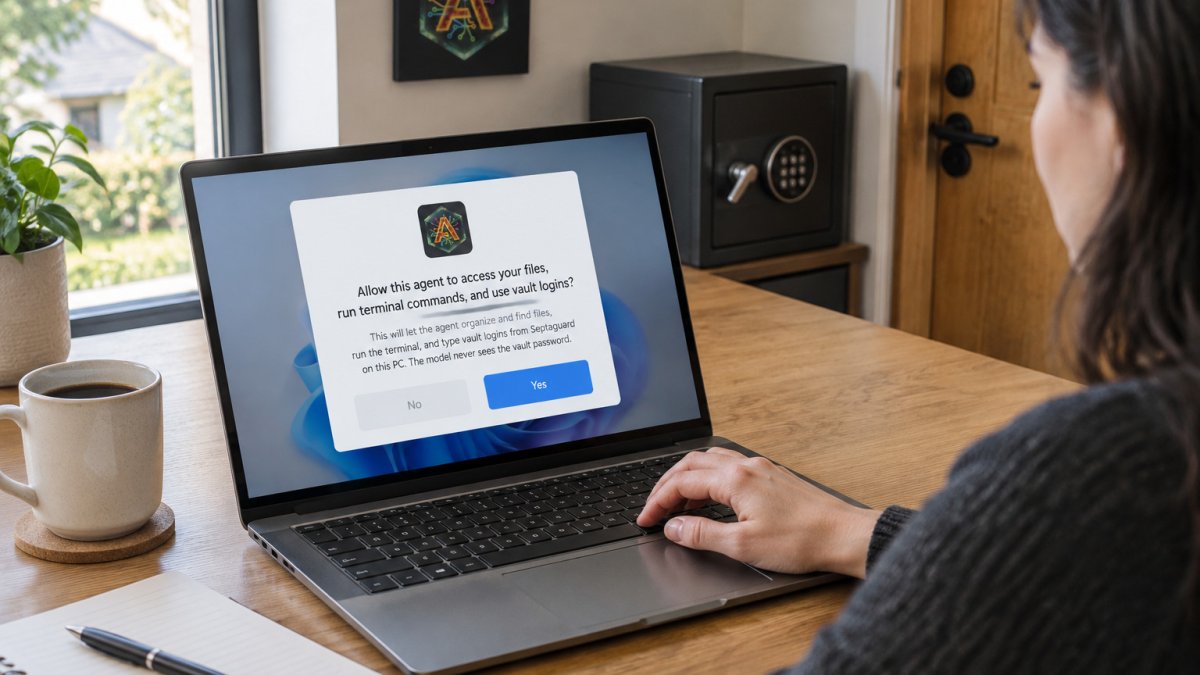
Able is a Windows desktop agent built around that question. After you say yes, Able can organize and find files, run terminal commands, and type saved logins from its vault on the PC you own. The model never sees the vault password.
AI Agents That Control Your Computer: Files, Terminal, Browser
Agents that control a computer usually fall into three capability groups:
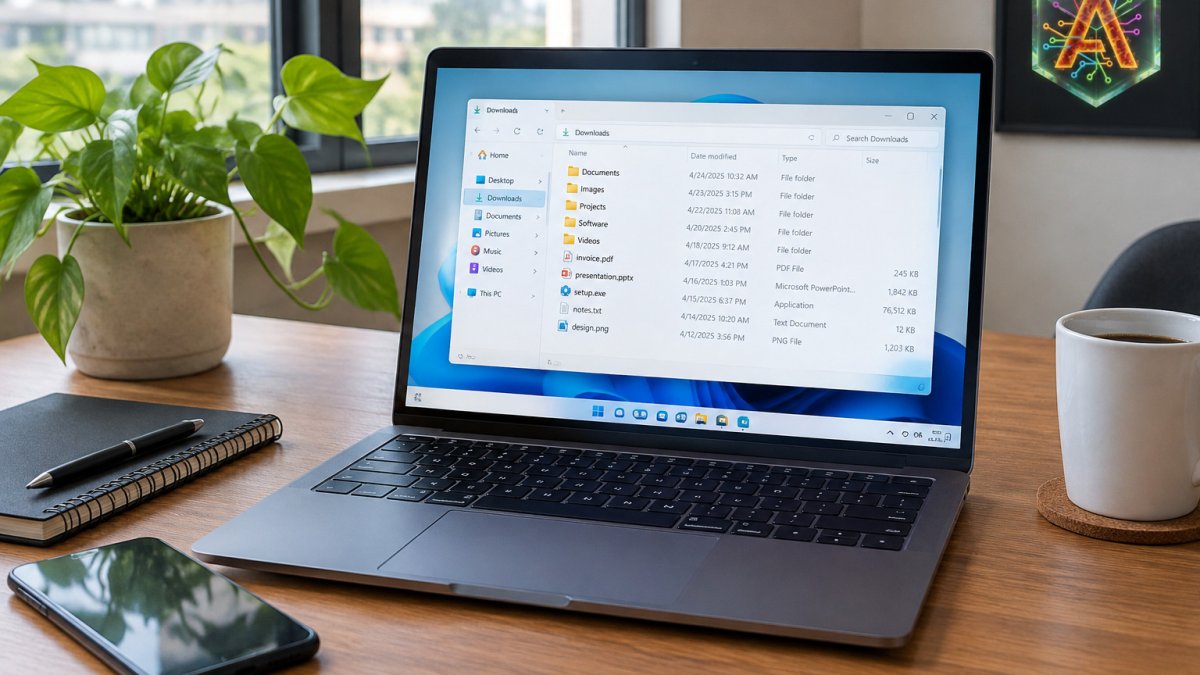
- Files: Reading, sorting, renaming, and moving documents and downloads
- Terminal: Running commands, scripts, and package installs
- Browser and apps: Clicking, typing, and reading what is already open
Each group carries a different level of risk. File moves are easy to undo. Terminal commands can change system settings. Browser actions can submit forms or send messages.
Able works across these groups, but only after you approve the action. That approval step is what separates a useful agent from one that quietly does things in the background.
Where the Cloud Brain Ends and Your PC Begins
Able uses a cloud model for thinking. Claude, Gemini, Grok, or Kimi can read your request and plan the steps. Able then carries out those steps on your Windows PC, so the ai agents access it needs for files and terminal work stays on your machine.
The split matters. Organizing and finding files works without a brain. Chat and research need an internet connection, because the model runs in the cloud. Able is not fully offline, and it is not a local model runner like Ollama, LM Studio, or Jan.
Local AI Agent for Windows: Why It Runs on Your PC, Not in a Tab
A chat tab can answer questions, but it cannot open your folders or run a script on your desktop. A local AI agent for Windows runs as software on the machine itself, so it can act on real files and real applications.
Running on your PC has clear benefits:
- The agent works with files that never leave your drive unless you send them
- Actions happen in the apps you already use
- You control which folders the agent can see
Able is licensed as one-time Windows software, with pricing on the Able website. There is no monthly desktop subscription for the agent itself. Cloud model usage is paid separately as fuel.
Able runs on Windows 10 and Windows 11. Mac and Linux versions are planned but are not shipping yet.
Local AI Agent Security: Permissions, Vault Logins, and Approval
Security is where computer agents succeed or fail. University of Missouri System guidance on AI agents notes that agents may need broad access to browsers, computers, and cloud files, including personal information and accounts. That access should be scoped and deliberate. Able is built around that idea: you say yes, Able acts, and you can review what it did.
A Threat Model for Computer AI Agents
Before you grant access, name the risks. Four matter most for an agent that touches your local PC.
- Prompt injection: Text the agent reads, a web page, an email, a file, can contain instructions that hijack the task. Mitigation: keep the agent's scope narrow, review approval prompts, and never let an agent act on untrusted content with broad folder access.
- Credential exposure: Passwords pasted into a chat window or stored in plain text can leak. Mitigation: use a local vault. Able types vault logins from Septaguard on your PC after you approve; the model never sees the vault password.
- Destructive commands: A terminal command can delete or overwrite files. Mitigation: approval gates before commands run, and a starting scope of one project folder rather than the whole drive.
- Data exfiltration: An agent that can read files and reach the network can send data out. Mitigation: limit which folders Able can read, and review any action that sends a file somewhere new.
A Permission Checklist You Can Run Today
Use this as a pre-flight check before you point Able at real work.
- Scope one folder first. Point Able at a downloads folder or a single project directory, not your whole user profile.
- Read the approval prompt. Able asks for your approval before it acts. If a prompt does not match the task you asked for, deny it.
- Keep the vault separate. Saved logins live in Septaguard on the PC. Confirm the model never receives the password, it should only receive the task.
- Test with a disposable folder. Create a scratch directory, let Able organize it, and verify the results before widening scope.
- Review what changed. After a job, check the folder. If something moved that you did not expect, tighten scope before the next run.
- Widen only after a clean run. Add a second folder only when the first workflow proves safe.
Recovery: When an Agent Does Something You Did Not Expect
Mistakes happen, so plan the recovery before you need it. Keep version history or backups on the folders you expose, so a bad move or overwrite can be undone. If a command goes wrong, stop the agent, restore from backup, and narrow the folder scope before retrying.
For a step-by-step check on what happens to uploaded files, see What Happens to Files Uploaded to AI? A Step-by-Step Check. For limiting access on your PC, see How to Limit AI Agent Permissions on Your Windows PC. For how Able handles trust and data, see uable.store.
How Vault Passwords Stay Away From the Model
Your vault passwords are stored locally in Septaguard on your PC. When a login is needed, Able types the credential into the target field after you say yes. The language model receives the task, not the password. This design means a cloud model working on your request does not see your saved passwords.
Watch out: Approval fatigue is real. If you click yes on every prompt without reading it, the gate stops protecting you. Slow down on terminal commands and on any action that sends a file somewhere new.
Local AI Model vs Desktop AI Agent: Which Do You Need?
People often compare these two categories, but they solve different problems. A local model runner keeps the thinking on your machine. A desktop AI agent keeps the doing on your machine.
| Option | Where the model runs | Where the work happens | Best for |
|---|---|---|---|
| Local model runner (Ollama, LM Studio, Jan) | On your PC | Chat only, you still move the files | Private chat, model experiments, offline drafting |
| Desktop AI agent (Able) | Cloud brain, rented as fuel | On your Windows files, terminal, and vault | Organizing, finding, running commands, typing saved logins after approval |
| Cloud chat (ChatGPT and similar) | Cloud | In a browser tab | Research, writing, general answers |
Able is not Ollama, LM Studio, Jan, or Open Interpreter. Those tools run local models. Able is the Windows file, terminal, and vault agent. Able is also not fully offline: organizing, finding, and vault work run without a brain, but chat and research need an internet connection because the model runs in the cloud.
A Decision Framework: Privacy, Capability, Cost, Latency, Maintenance
Rather than picking a tool by name, pick an architecture by asking five questions in order.
- Privacy: Does the data have to stay on the drive? If yes, a local model runner wins for chat, and Able's organize/find/vault work stays on the PC without a brain. If the data can leave the machine for thinking, a cloud brain is fine.
- Capability: Does the task require acting on real files, a terminal, or saved logins? A chat tab cannot open your folders. Able can, after you approve each action.
- Cost: A local runner has no per-token bill but needs capable hardware. Able is one-time Windows software from $79, with cloud thinking paid separately as fuel. A cloud chat is a subscription. Compare the total, not the sticker.
- Latency: Local models on modest hardware can be slow on long prompts. Cloud brains are fast but need a connection. Able inherits cloud latency for chat and runs file work locally.
- Maintenance: Local runners need model downloads, updates, and VRAM tuning. Able is installed once on Windows 10 or Windows 11; Mac and Linux versions are planned but not shipping yet.
A common pattern is hybrid: a local runner for private drafting, plus Able for the file and terminal work a chat model cannot do. Many people use both, and that is a legitimate answer, not a cop-out.
Hardware Reality for Local Models
If you are leaning toward a local runner, be honest about hardware. Small quantized models can run on modest hardware, while larger models need more capable hardware, such as a GPU with meaningful VRAM. Latency on long prompts is the usual complaint.
Watch out: Granting an agent broad folder access is convenient but risky. Start with a single project folder, review each approval prompt, and widen access only when the workflow proves safe.
Try Able on Your Own Files Before You Decide
Reading about agent permissions only goes so far. The fastest way to judge whether Able fits your workflow is to run it on the folders you actually use.
Able's 3-day trial requires no credit card. You can point it at a downloads folder, a project directory, or a messy desktop, and see how the approval prompts feel in practice.
GET ABLE and start with a single folder today. Able lets you get more done on the PC you already own.
Frequently Asked Questions
Is it possible to run AI agents locally?
Yes, but the split matters. Able runs on your Windows PC and handles file organizing, finding, terminal commands, and vault logins locally once you say yes. Chat and research still call cloud brains such as Claude, Gemini, Grok, or Kimi over the internet, and fuel pays for that thinking. Tools like Ollama or LM Studio run local models instead, which is a different job. If you need the agent to act on your files with the model kept out of your passwords, Able is built for that, with a 3-day trial and no card required to test it.
Can AI agents control my computer?
Able can. After you approve a job, it can move and organize files, run terminal commands, and type saved logins from the Septaguard vault on your PC. The model never sees the vault password. It is not fully offline, though: organizing, finding, and vault work run without a brain, while chat needs internet. You decide each job, so nothing runs on your machine without your yes.
Is it safe to let an AI agent use my computer?
It depends on what you grant. Broad access to files, shell, and credentials raises real exposure, so give an agent only the scope a task needs and keep approval on. Able asks before it acts and keeps vault passwords out of the model's view. Review what each job touches, and test on non-sensitive folders first. You can try Able on the 3-day trial at https://uable.store/trial/ before trusting it with client data.
What is the difference between a local AI model and a desktop AI agent?
A local AI model is the brain that generates text, and tools like Ollama or LM Studio run it on your hardware. A desktop AI agent is the hands: it takes actions on your PC, such as moving files or running commands. Able is the Windows agent, not a model runner, and it uses cloud brains for thinking. One-time licenses are available at https://uable.store, and you can confirm current pricing on the pricing page.