 How-to
7 Steps to Organize a Messy Downloads Folder in Windows
Last Updated: November 19, 2026
Quick Summary
To organize a messy downloads folder in Windows, first move unneeded files into a temporary _Review folder rather than deleting them, then delete what you don't need after a week. Sort what remains by file type into a few subfolders such as Documents, Images, Installers, and Archives, and keep a short weekly cleanup routine.
- Create a _Review folder and move files there first instead of deleting them straight away.
- Use Details view and sort by Size and Date modified to find large or old files.
- Keep five clear subfolders, such as Documents, Images, Installers, Archives, and Review.
- Turn on file name extensions to spot disguised files like invoice.pdf.exe before opening them.
- Spend about ten minutes a week on the folder to keep it clean.
Table of Contents
- Why Your Downloads Folder Turns Into a Mess
- Step 1: Clear Out What You No Longer Need
- Step 2: Sort Files by Size and Date to Spot Problems
- Step 3: Organize Downloads Folder by File Type
- Step 4: Stop the Downloads Folder From Grouping Files Together
- Step 5: Set Up Rules That Automatically Sort Files in Downloads
- Keeping Your Downloads Folder Clean With Able
- Your Next Step: Set Up a Cleanup Routine This Week
- Frequently Asked Questions
Your Downloads folder is probably the messiest place on your PC. Installers, PDFs, screenshots, and ZIP files pile up until you can't find anything. This guide from Able walks you through the steps to clear the clutter and keep your downloads folder under control, with Windows' built-in tools and an optional automation step.
Why Your Downloads Folder Turns Into a Mess
Every file you download lands in the same place by default. Browsers, email clients, and installers all send files to the Downloads folder, so it fills up without any structure. Nobody sorts files as they arrive because the next task is always more urgent.
The result is predictable. Old installers sit next to invoices. Duplicate PDFs stack up. Screenshots from last year hide the one file you need today.
The good news is that the fix is simple. A few minutes of sorting, plus a small routine, keeps the folder usable.
Step 1: Clear Out What You No Longer Need
Start by deleting what you don't need, but do it in a way you can undo. This makes every later step faster because there is less to sort, and it protects you from the classic mistake of deleting a file you actually needed.
Use a reversible workflow instead of deleting straight from Downloads:
- Create a holding folder. Inside Downloads, make a folder called
_Review. This is your temporary parking lot, not a trash can. - Move, don't delete, on the first pass. Drag anything you think you don't need into
_Review. Nothing is gone yet. - Wait a few days. Use your PC normally. If you find yourself needing something from
_Review, drag it back out. - Delete the rest. After a week, empty
_Reviewinto the Recycle Bin, then empty the Recycle Bin.
When you do delete, apply a simple rule set:
- Delete installers for programs you already installed
- Delete duplicate copies of the same file
- Delete old screenshots and temporary files you no longer use
- Move anything you need to keep into a proper folder, such as Documents or Pictures
Before you delete anything important, check the file name and date. If you are unsure, move it to _Review instead. You can remove it later, once you are sure you don't need it.
Watch out: Deleting a file from Downloads does not free up disk space until you empty the Recycle Bin. Empty the Recycle Bin when you are sure, and check that _Review is empty before you do.
If you want a second pair of eyes on the plan before anything moves, Able can review the folder and propose what to keep, move, or delete. Able runs on this PC and waits for your approval before it touches a file. If you want a tool that pulls the key details out of text you paste in, Able Desk Sort extracts money, invoice IDs, emails, and URLs from a message.
Before moving anything, here is a quick summary of the cleanup rules from this step.
| File type | Action | When |
|---|---|---|
| Installers for programs already installed | Delete | Right away |
| Duplicate copies of the same file | Delete | Right away |
| Old screenshots and temporary files | Delete | When no longer used |
| Files you need to keep | Move | To Documents or Pictures |
| Anything you are unsure about | Move to _Review | Decide after a few days |
Step 2: Sort Files by Size and Date to Spot Problems
Next, use File Explorer's sort options to find the files that cause trouble.
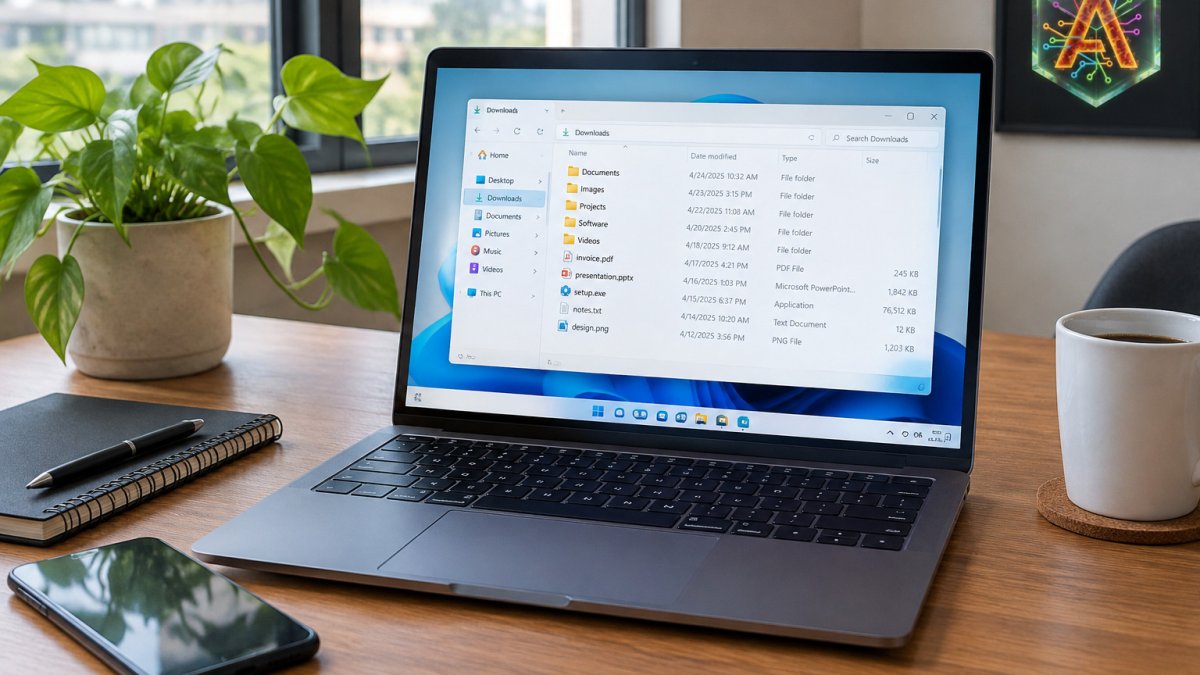
Open the Downloads folder, then select View and choose Details. Click the Size column header to find the largest files first. Click the Date modified column to see what you downloaded recently and what has sat there for months.
Large old files are the usual suspects. A forgotten video or disk image can take up more space than everything else combined. Sorting by date also shows which files you have not touched in a long time, and those are good candidates for cleanup.
A quick search helps too. Type a file type such as .zip or .exe in the search box to see only those files.
Step 3: Organize Downloads Folder by File Type
Once the folder is smaller, group what is left by type. This is the step that makes the folder easy to use again, and it is where a small decision system saves you from staring at a file called setup_final_v2.exe and guessing.
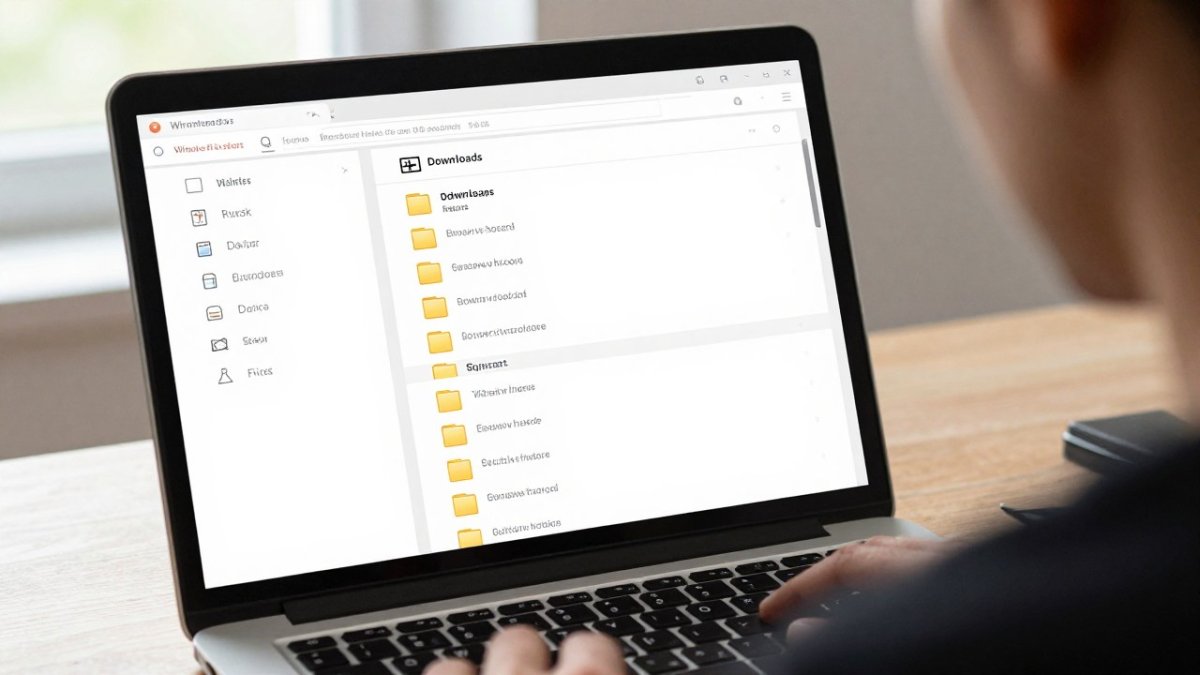
Create a few subfolders inside Downloads, such as:
- Documents for PDFs, Word files, and spreadsheets
- Images for photos and screenshots
- Installers for
.exeand.msifiles - Archives for ZIP and RAR files
- Review for anything you are not sure about yet
Then use this decision system for each file:
- Installer (
.exe,.msi), If the program is already installed and working, delete it. If you might reinstall it, move it toInstallers. Never run an installer you don't recognize. - Archive (
.zip,.rar,.7z), If you already extracted the contents and don't need the original, delete it. If it is a backup or a project you are still working on, move it toArchives. - Document (
.pdf,.docx,.xlsx), If it is a bill, contract, or reference you will need again, move it toDocumentsor your cloud storage. If it was a one-time read, delete it. - Image (
.png,.jpg,.webp), Screenshots you took for a quick task can usually go. Photos and design assets you will reuse belong inImages. - Script or unknown file (
.ps1,.bat,.cmd, no extension), Do not run it. Move it toReviewand check where it came from before you do anything else.
Select a group of files, then drag them into the matching subfolder. You can also sort by the Type column in Details view and move each block at once. In Windows 11, the View > Sort by > Type menu does the same thing, and View > Show > File name extensions makes the type visible next to every name.
A consistent set of folders beats a complicated one. Five clear categories are easier to keep up than twenty narrow ones. If a file doesn't fit any category, it goes in Review, not in a new folder you will forget about.
Watch out: Files with double extensions like invoice.pdf.exe are a common trick. Turn on file name extensions in File Explorer so you can see the real type before you open anything.
This is also where Able helps. Able is the Windows agent that can organize and find files on your PC after you say yes, so you are able to keep the folder clean without doing every drag by hand.
Step 4: Stop the Downloads Folder From Grouping Files Together
Windows often groups files in the same view, which can hide what you need. You can change this so files show as a flat list.
Open File Explorer, select View, then Options, and open the View tab. Adjust the grouping settings so that files are not stacked under headings you don't want. Turn on file extensions so you can see .pdf or .zip next to each name.
These settings make it easier to scan the folder. You can see what each file is at a glance.
Step 5: Set Up Rules That Automatically Sort Files in Downloads
Manual sorting works, but it takes effort every week. Automation keeps the folder clean without the work.
Windows has no built-in rules for sorting downloads, so you would need a script or a third-party tool. If you are wondering whether desktop automation can be done without writing macros, the answer depends on the tool you choose. A script can run on a schedule, but it needs careful testing so it does not move files you still need. Our Windows workflow guide for automating local file management covers folder rules and safe moves step by step.
This is where Able helps. Able is a licensed Windows 10 and 11 desktop agent from Apex Empire Inc. For a step-by-step look at organizing Windows files with AI and Able, see the full guide. After you say yes, Able can organize and find files on your PC. Able is not fully offline. Organizing and finding files works without a cloud brain, but chat and research need an internet connection.
Keeping Your Downloads Folder Clean With Able
A clean folder only stays clean if you keep it that way. You can try Able free for three days before you pay anything, with no card required. Plan a short routine, such as ten minutes once a week. Check the folder, move new files into their subfolders, and delete what you no longer need.
Able makes this routine easier. Because Able runs on your PC and waits for your approval, you stay in control of what changes on your machine. One-time licenses are available, and you can try Able free for three days with no card. You can also review the setup details on the Able trust page.
Able is the Windows agent that does the file work on your machine, so you are able to spend your time on everything else.
Your Next Step: Set Up a Cleanup Routine This Week
Pick one day this week and spend fifteen minutes on the Downloads folder. Delete the old installers, sort the rest into a few subfolders, and set a weekly reminder. If you want help with the routine, try Able for three days with no card.
GET ABLE: https://uable.store/trial/
Frequently Asked Questions
What is the best way to organize my Downloads folder?
Start by deleting or moving files you no longer need, then group what remains by file type into subfolders such as Documents, Images, Installers, and Archives. Sort by size to find large files that take up space, and sort by date modified to catch old downloads. Repeat this every few weeks so the folder never builds up again. Keeping only a few top-level categories makes it easy to find things later.
How do I stop the Downloads folder from grouping files?
In File Explorer, right-click an empty area of the Downloads folder, choose Group by, and set it to None so files display as a flat list. You can also change the view to Details and turn off grouping for that folder. Sorting by a column header still works without grouping. If the view resets, check the folder's Customize tab and set its optimized template to General items.
Can Windows automatically sort files in the Downloads folder?
Windows does not include a built-in rule engine that moves files into subfolders by type. You can use PowerShell scripts or Task Scheduler to run a cleanup routine on a schedule, but these need careful setup and testing. Able can handle this kind of sorting on your Windows PC after you approve the plan, so you do not have to write scripts yourself. Test any automation on a copy of your files first.
Do I need to keep everything in my Downloads folder?
No. Installers, duplicate downloads, and temporary files usually have no ongoing use once the software is installed or the document is saved elsewhere. Keep the files you still need and move important documents to Documents or another folder you back up. Before deleting anything, check the date modified and file size so you do not remove something you need. Moving files to a dated archive folder is a safe middle option.