 How-to
Automate Local File Management: A Windows Workflow Guide
Last Updated: November 8, 2026
Quick Summary
Automating local file management means letting rules move, sort, rename, and archive files on your Windows PC without touching each one by hand. Define the rules once, copy first, then move, and approve each action before it runs.
- Start with one source folder, such as Downloads, and a single rule.
- Copy files first, then move them, so a failed copy never removes the original.
- Run new rules in copy mode for a week before switching to moves.
- Keep a backup on a separate disk before turning on automated moves.
- Able's trial lasts 3 days and needs no card.
Table of Contents
- What Automating Local File Management Actually Means
- What You'll Need Before You Start
- Step 1: Map Your Folders and Define Sorting Rules
- Step 2: Build a Power Automate Local File Management Workflow
- How to Use File Juggler for Folder Rules
- File Juggler Alternative: Choosing Your Automation Tool
- Testing, Backups, and Recovery for Automated File Moves
- Set Up Your First Local File Workflow with Able
- Frequently Asked Questions
What Automating Local File Management Actually Means
Automating local file management means letting a set of rules move, sort, rename, and archive files on your PC without you touching each one. Able can run these jobs on your Windows machine after you say yes, so you stay in control of what gets moved and when.
The idea is simple. Files arrive in Downloads, on the desktop, or in a shared folder, and something should decide where they belong. Automation handles the repetitive part. You define the rules once, and the system follows them every time.
Able takes a different route from cloud-only tools. It works on the files already on your PC, and the vault stores your logins locally.
- Watch out: Automation that moves files without a review step can bury important documents in the wrong folder. Start with a copy action before you switch to moves.
What You'll Need Before You Start
You need a Windows 10 or 11 PC, a clear idea of which folders matter, and a short list of file types you handle often. That is enough to begin.
Before you build anything, gather these items:
- A Windows 10 or 11 PC with Able installed
- A list of your source folders, such as Downloads, Desktop, or a project folder
- A list of destination folders, such as Invoices, Photos, or Archive
- Notes on file types and naming patterns, such as "invoice_2026" or ".pdf"
- A test folder where you can try rules without risk
Able's trial lasts 3 days and needs no card. Use that time to test your rules on sample files before you run them on real work. You can start a trial at uable.store.
Keep one habit from day one: limit what the agent can touch. You can read more about how Able works on Windows at the Windows desktop AI agent page.
Step 1: Map Your Folders and Define Sorting Rules
Start by writing down where files come from and where they should go. A short map beats a long plan.
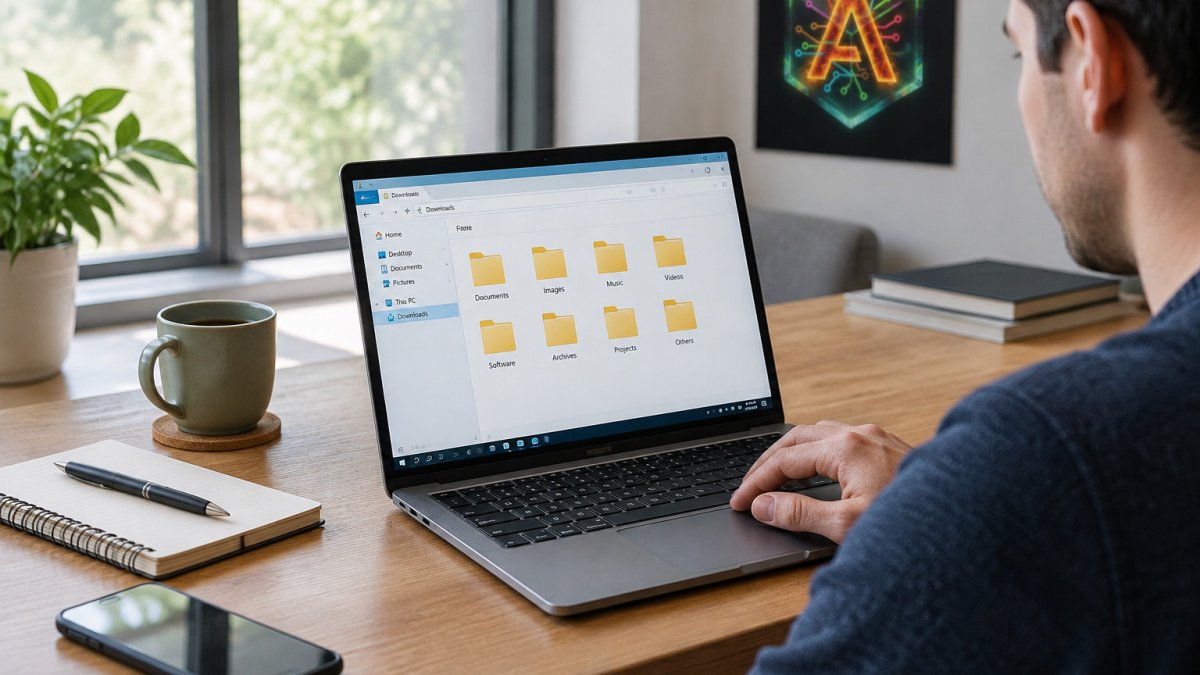
Sort your rules into a simple table. The table below shows a starter layout you can copy and adjust:
| Source Folder | Rule | Destination | Review Step |
|---|---|---|---|
| Downloads | File type is .pdf and name contains "invoice" | Finance/Invoices | Copy first, then move |
| Downloads | File type is .jpg or .png | Media/Photos | Move after 7 days |
| Desktop | Name contains "draft" | Work/Drafts | Manual review |
| Shared Projects | Modified in last 30 days | Archive/2026 | Confirm before move |
Keep rules short and specific. A rule like "sort by type" works, but "PDFs with invoice in the name go to Finance" is clearer and safer. Many people also find that date-based rules help, such as moving files older than 90 days into an archive folder.
Able's job is to follow the rules you give it. It does not guess your intent, so write each rule as if you were explaining it to a new assistant.
Step 2: Build a Power Automate Local File Management Workflow
A local file workflow can be built with many tools, and it helps to separate a trigger from the actions that follow. The same skeleton transfers to most folder-rule tools, including Able.
A tool-neutral local file workflow has four parts. Write them down before you open any app:
- Trigger, what starts the run. Common triggers are a new file appearing in a watched folder, a scheduled check every 15 minutes, or a manual run you start yourself.
- Condition, how the workflow decides a file matches. Conditions use file type, name pattern, size, or modified date. Keep each condition to one or two tests so you can predict the outcome.
- Action, what happens to a matching file: copy, move, rename, archive, or extract. Copy first, then move, so a failed copy never removes the original.
- Verification, how you confirm the run worked. Log every action to a text file and check the log after each run.
A typical flow for a Downloads folder looks like this:
- Trigger: a new file lands in Downloads
- Condition: the file type is .pdf and the name contains "invoice"
- Action: copy the file to Finance/Invoices
- Action: append a line to a log file with the source, destination, and timestamp
- Action: move the original only after the copy succeeds
The copy-then-move pattern protects you. If the copy fails, the original stays where it is. Many people skip this step and lose files, so keep it.
Exception handling is where most homegrown flows break. Plan for these cases before they happen:
- Duplicate names, a second file named the same as an existing one. Decide whether to overwrite, rename with a suffix, or skip. Overwriting silently is the most common cause of lost data.
- Ambiguous files, a file that matches two rules. Order your rules so the most specific one runs first, and log which rule fired.
- Failed actions, a locked file, a full disk, or a permission error. Have the flow log the failure and leave the original in place rather than retrying blindly.
- Conflicting rules, two rules that send the same file to different folders. Keep your rule count low at first; five clear rules work better than twenty overlapping ones.
Able can handle parts of this work through plain instructions. You describe the rule, and you approve each action before it runs.
Watch out: Power Automate flows that rename files can break links in other documents.
People searching for a Power Automate local file management workflow often want a clear, repeatable recipe.
How to Use File Juggler for Folder Rules
File Juggler is a folder-rule tool. Folder-rule tools generally work by pointing at a source folder, defining conditions, and setting a destination.
Start by adding one source folder. Then create a single rule, such as "PDFs with invoice in the name go to Finance." Run the rule on a test folder before you point it at real files.
Keep your rule count low at first. Five clear rules work better than twenty overlapping ones. When two rules match the same file, the outcome becomes hard to predict, and debugging takes longer than the time you saved.
If you want to learn the mechanics before you commit to a tool, the steps above transfer to any folder-rule app.
File Juggler Alternative: Choosing Your Automation Tool
If File Juggler does not fit your needs, you have a few paths. Pick based on how you work, not on which tool has the longest feature list.
Here is how the options compare for a typical Windows user:
| Option | Best For | Runs Without Internet | Approval Before Action |
|---|---|---|---|
| Power Automate | Microsoft-centric teams | Partly | Depends on flow design |
| Folder-rule apps | Simple sorting only | Yes | Usually no |
| Able | Files, terminal, and vault logins on Windows | Partly (files and vault work offline; chat needs internet) | Yes, you say yes first |
Able is a Windows agent, not a local model runner. Ollama and LM Studio run models on your machine. If you are comparing it with Lapu.ai, see the Able comparison page; Able runs on Windows only.
Able is one-time software, licensed from $79, with fuel for cloud thinking paid separately. For current pricing, see the pricing section on the Able site. Able also includes a trust page covering how it handles your data, at uable.store/trust.
Choose the tool that matches your file volume, your comfort with setup, and how much control you want at each step.
Testing, Backups, and Recovery for Automated File Moves
Automation guides often stop at the rules. Testing, backup, and recovery decide whether automation saves time, and this section covers them.
Build a test harness. Create a test folder that mirrors your real one, add sample files that cover each rule, and include the awkward cases: a duplicate name, a file that matches two rules, a zero-byte file, and a file with a space and a date in the name. Run every rule against the test folder and check that each file lands where you expect. A dry run on copies is the cheapest way to find a bad rule.
Use a measurable test procedure. You do not need dashboards, but you do need numbers you can compare:
- Processing time, how long a run takes on 100 sample files. If a run takes minutes on a small folder, it will crawl on a real one.
- Error rate, how many files failed to land in the expected folder per run. Any nonzero rate means a rule needs fixing before you switch to moves.
- Manual steps avoided, count the clicks and drags you no longer do per week. This is the number that tells you whether the workflow is worth keeping.
Set up backups before the first move. Keep a copy of key folders on a second drive or an external disk before you turn on moves.
Run in copy mode first. Run rules in copy mode for at least one week, review the log after each run, and compare the destination against the source.
Plan recovery for the three common failures. A file moved to the wrong folder is fixed by searching the log for its name and moving it back. An overwritten file is only recoverable from backup, which is why duplicate-name handling matters. A deleted file needs a recycle-bin check first, then the backup. Write these three steps down so you are not improvising under pressure.
Able's approval step fits well here. You can also read about Able on the Windows desktop AI agent page, and the trust page covers how Able handles your data.
Watch out: a backup that lives on the same drive as the files it protects is not a backup.
Set Up Your First Local File Workflow with Able
Start with one folder and one rule. Pick Downloads, since it fills up fast, and create a single rule for PDFs or images. Run it in copy mode for a week, then switch to moves once the results look right.
Able helps you through each step. You describe the rule in plain language, and you approve actions before anything runs. Vault logins stay on your PC, and the model never sees the password.
Able is one-time software from Apex Empire Inc., licensed from $79 with no monthly desktop subscription. Try it free for 3 days with no card: start your Able trial.
With Able, you are able to get a lot done on your own Windows PC, so you can spend your time on the work that matters.
Frequently Asked Questions
How do I automate file organization on Windows?
Start by choosing one folder, such as Downloads, and defining a few sorting rules based on file type or name pattern. Then use a tool that watches that folder and moves matching files into the right subfolder. Test the rules on copies first. Able can run these steps on your PC after you approve them, and it keeps the files on this machine while it works.
Can Power Automate manage files stored on a local computer?
Power Automate can work with local files through desktop flows, provided the machine and the flow have access to the folder. It is most useful when a local file move needs to connect to a larger process. For simple folder sorting, a dedicated local tool may be quicker to set up.
What are alternatives to File Juggler for automating file organization?
Alternatives range from built-in Windows options such as Task Scheduler with scripts, to Power Automate desktop flows, to dedicated agents. The right choice depends on how complex your rules are and whether you need the process to run without manual approval. Able is one option: it is a one-time Windows license from $79, with a 3-day trial and no card required, and it acts on your PC after you say yes.
Can I automate file management without uploading files to the cloud?
Yes. Folder watching, renaming, and moving can run entirely on your PC. Cloud services only come into play if a workflow sends files elsewhere or uses an online AI model for planning. Able handles file, terminal, and vault tasks on this machine. Chat and research still need internet access, because they use cloud models, so plan your setup with that split in mind.