 How-to
Build a Personal Desktop Assistant in 7 Steps
Last Updated: November 18, 2026
Quick Summary
A desktop assistant is software that runs on your computer and handles repeat tasks such as sorting files, renaming invoices, and running short scripts, but only after you approve each job. Unlike a chatbot tab, it works on your actual files, folders, and apps. Setting one up on Windows starts with a small, low-risk task.
- A desktop assistant works on your real files, folders, and apps, unlike a browser chatbot.
- Able uses a cloud model such as Claude, Gemini, Grok, or Kimi for thinking, while the agent handles files on your PC.
- Start with low-risk tasks like sorting Downloads to see how the agent behaves.
- Test Able on real folders with the 3-day trial, which needs no card and runs on Windows 10 and 11.
Table of Contents
- Step-by-Step: Set Up a Desktop Assistant on Windows
- How to Make Your Own AI Assistant in Python, and Where It Breaks
- Writing a Claude Personal Assistant Prompt That Holds Up Over Time
- Building an AI Desktop Assistant Workflow Automation Routine
- Custom Build vs. Using Able: A Comparison
- Desktop AI Assistant Privacy and Safety Checks
- Start Your Desktop Assistant Setup With a 3-Day Able Trial
- Frequently Asked Questions
A personal desktop assistant is software that runs on your computer and handles repeat tasks for you after you approve them.
That approval step is what separates a desktop assistant from a chatbot tab. A chatbot answers questions in a browser window.
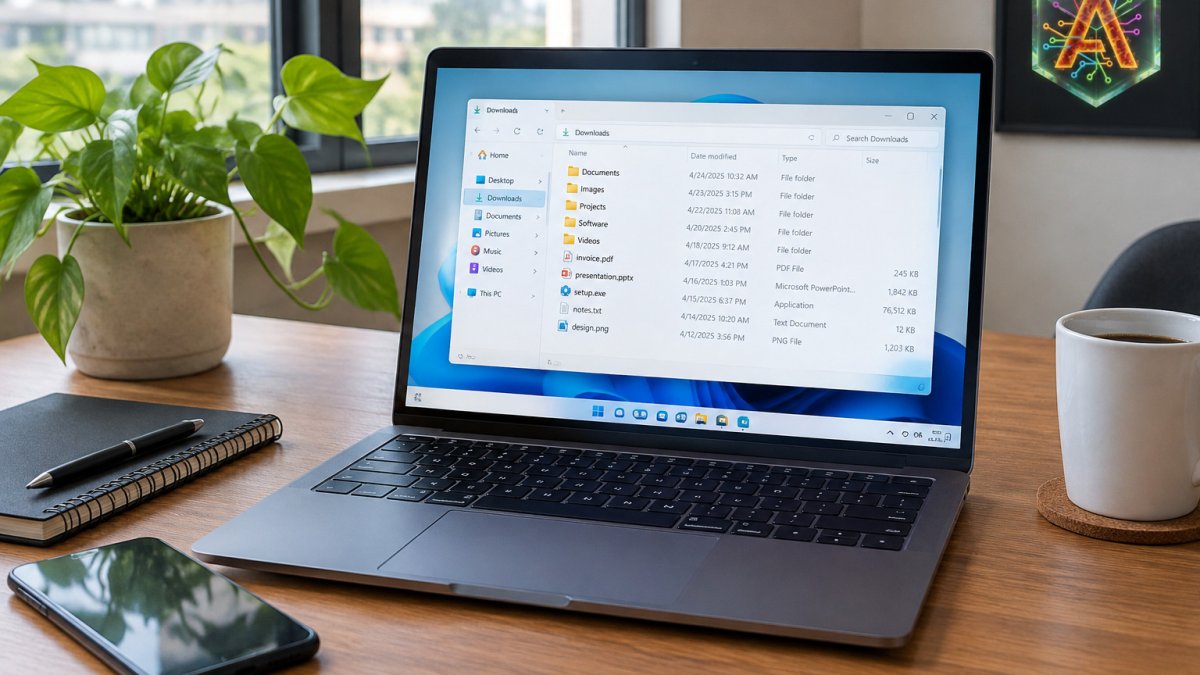
For daily workflows, the most useful jobs are simple. Sorting a messy Downloads folder, renaming a batch of invoices, finding last month's contract, or running a short script are all good candidates.
Step-by-Step: Set Up a Desktop Assistant on Windows
Setting up a desktop assistant on Windows can be quick. You install the agent, connect a cloud brain, and approve the first small job. Start with low-risk tasks so you can see how the agent behaves.
Begin with the 3-day trial, which needs no card, so you can test real folders before paying. Able runs on Windows 10 and 11.
Choosing Your Cloud Brain and Keeping It Separate
Able does not think on its own. It uses a cloud model such as Claude, Gemini, Grok, or Kimi, which runs over the internet.
Keep the two roles separate in your head. The agent handles files, terminal commands, and vault logins on your PC. The brain handles reasoning and chat.
Pick one brain to start. Before committing, you can compare the AI workflow automation tools available for Windows to see which fit your setup.
How to Make Your Own AI Assistant in Python, and Where It Breaks
Most DIY desktop assistants follow the same skeleton, and it is worth seeing the skeleton before you decide whether to build or buy.
A minimal working loop in Python looks like this in outline:
- Capture. Take a screenshot with a library such as
mssorPillow.ImageGrab, and optionally pull the active window title and the focused control. - Encode. Convert the screenshot to base64 PNG, or downscale it to keep token cost sane. Full-resolution 4K screenshots are expensive to send on every turn.
- Request. Call the model's tool-use endpoint with three things: the goal as a system prompt, the screenshot as an image block, and a JSON schema describing the tools you allow (for example
click(x, y),type(text),key(combo),read_file(path)). - Parse. Read the tool call out of the response. Models return a structured block, not free text, when you pass a tool schema, parse that block, not the prose around it.
- Execute and loop. Run the action, wait for the UI to settle (a fixed 300-800 ms sleep is the crude version; polling for a changed screenshot hash is the reliable version), then capture again and resend.
That is the happy path. The breakages are predictable, and they are where most DIY builds stall:
- Coordinate drift. Models return click coordinates in the pixel space of the image you sent. If you downscaled the screenshot before sending, you must scale the returned coordinates back up before clicking, or every click lands in the wrong place. This is the single most common bug in first builds.
- Stale screenshots. If you capture before the UI finishes rendering, the model reasons about a screen that no longer exists. A common pattern is to capture twice with a short delay and only proceed when the two hashes match.
- Unusual paths and characters. Folder names with spaces, emoji, or non-Latin characters break naive string concatenation in shell commands. Pass arguments as a list to
subprocess.runinstead of building a command string. - Hanging commands. A terminal action that waits for input will block your loop forever. Every subprocess call needs a timeout and a kill path.
Each of those is a few hours of engineering on its own, and each one is a bug that only shows up on a real desktop with real windows. Able is the Windows agent that runs the job on this PC after you approve it, so you do not have to rebuild that list yourself.
Writing a Claude Personal Assistant Prompt That Holds Up Over Time
A prompt for a desktop assistant is not a chat prompt.
A prompt that holds up has four parts, and each one maps to a failure you will otherwise hit:
- The goal, stated as a finish condition. Not "clean up Downloads" but "move every file in Downloads into a subfolder named after its extension, and stop when Downloads contains only folders." A finish condition lets the model know when to stop instead of inventing more work.
- The allowed tools and their limits. Name the actions the assistant may take, read a folder, move a file, run a listed command, and name what it may not do. "Do not delete, do not overwrite an existing file, do not touch anything outside the Downloads folder" is the kind of line that prevents the expensive mistake.
- The approval rule. Say explicitly when the assistant must stop and ask. A workable default is: read-only actions proceed, any write, move, delete, or terminal command waits for a yes. This is the same gate Able applies on this PC before it acts.
- The reporting format. Ask for a short plan before execution and a short summary after, listing what changed. That summary is what you review for the first two weeks, and it is how you catch a routine that is quietly doing the wrong thing.
A prompt skeleton you can adapt:
You are a desktop assistant running on my Windows PC. Goal: [finish condition]. You may read any file under [folder] and move files within it. You may not delete, overwrite, or touch anything outside that folder. Before any move, show me the plan as a list and wait for approval. After the job, list every file you moved and where it went. If a step fails twice, stop and tell me what blocked you.
That last line matters more than it looks. Without a retry cap, a model that misreads a dialog box will loop on the same action; with it, you get a clean failure report you can act on.
Where prompts break, and the fix:
- Vague verbs produce vague actions. "Organize my files" invites the model to invent a scheme. Name the scheme.
- Implicit scope invites overreach. If you do not say "only this folder," a helpful model may decide adjacent folders need tidying too.
- No stop condition produces busywork. The assistant finishes the real task and then keeps looking for more to do.
- Sensitive text in the prompt. A cloud brain sees whatever you send it, so keep passwords and document contents out of the prompt and let the local vault supply logins at execution time. Able never sends your vault password to the model; Able types the login on this PC after you approve.
Save your best prompts in a notes file and version them. Small edits to a prompt that already works, tightening a boundary, adding a stop condition, beat rewriting from scratch, and after a few weeks you will have a small library of routines that behave the same way every morning.
Building an AI Desktop Assistant Workflow Automation Routine
A routine turns one-off help into a repeatable habit. Pick one daily task and one weekly task, then let the assistant handle both after you approve the plan. To set up that approval step, see how to approve AI actions before they execute.
A simple starting routine:
- Daily: clear the Downloads folder and file screenshots by date.
- Weekly: check the invoices folder for missing files and list them.
- Monthly: archive finished project folders to a backup drive.
Review the output for the first two weeks. Once the results match what you expect, you can trust the routine with less supervision.
Custom Build vs. Using Able: A Comparison
Building your own assistant gives you full control, but it also gives you full responsibility. For a direct look at Able compared with Rosply, the differences in price, capture method, and included modules are laid out side by side.
| Factor | Custom Python build | Able on Windows |
|---|---|---|
| Setup time | Days to weeks | Install and run the trial |
| File and command safety | You write every safeguard | Approval step before actions |
| Credential storage | You design and secure it | Local vault, typed on approval |
| Ongoing maintenance | You fix breakages | Vendor-maintained app |
| Cost | Your time plus API costs | One-time license from $79 |
| Best for | Developers who want to learn | People who want results on Monday |
Able uses a local vault and a 3-day trial with no card, so you can test it on your own folders before you commit.
Desktop AI Assistant Privacy and Safety Checks
Before you give any agent access to your PC, check what it can see and what it can send out. Privacy is a setup decision, not an afterthought.
Run through these checks:
- Confirm which folders the agent can read and write.
- Keep vault passwords in the local vault, not in chat prompts.
- Remember that your cloud brain receives any text you send to it.
- Test deletion and moves on a copy of a folder first.
Able never sends your vault password to the model, and the agent types it on this PC after you approve. Still, treat the cloud brain as a service that sees the prompts you write.
Start Your Desktop Assistant Setup With a 3-Day Able Trial
The fastest way to learn whether a desktop assistant fits your work is to test it on real tasks.
Start the 3-day trial for Windows at https://uable.store/trial/ and run your first approved job on a folder you already know well.
When you are ready to keep it, a one-time license is listed at https://uable.store/#pricing. There is no monthly desktop subscription to cancel later.
Frequently Asked Questions
Can I make my own personal AI assistant?
Yes. A basic personal assistant can be built in Python by connecting a speech or text input, a cloud model API, and a few functions that run local actions such as opening files. The harder part is safe execution: every action needs a confirmation step and clear permissions, or a bad prompt can delete or move files you did not mean to touch. If you want the file, terminal and vault work handled for you, Able runs those jobs on your Windows PC after you say yes, with cloud brains used only for thinking and chat.
Can a personal desktop assistant work offline?
Partly. Organizing, finding and vault-typed logins in Able work without a cloud brain, but chat, research and reasoning need an internet connection because they call cloud models such as Claude, Gemini, Grok or Kimi. Able is not Ollama or LM Studio, which run local models; it is a Windows file, terminal and vault agent. Plan your setup around that split before you rely on it for offline work.
What tasks can a desktop AI assistant automate?
Repetitive file work is the strongest fit: sorting downloads, renaming batches of files, finding documents by content, and running terminal commands on a schedule you approve. Able handles these on Windows 10 and 11 after you confirm each job, and it types vault logins without the model seeing the password. Tasks that depend on judgment, such as drafting replies, still need a cloud brain for the thinking step.
How do I keep a desktop AI assistant's actions safe?
Limit what the assistant can touch, require confirmation before any file deletion or terminal command, and keep credentials out of chat prompts. Review logs after each run and start with a folder you can afford to lose. With Able, the agent acts only after you say yes, and vault passwords are typed on this PC rather than sent to the model. A 3-day trial with no card lets you test those controls before buying.