 How-to
Can You Automate Desktop Tasks Without Macros?
Last Updated: November 15, 2026
Quick Summary
You can automate repetitive desktop tasks without macros by describing the outcome instead of recording clicks. Macro-free tools like Able, a Windows desktop agent from Apex Empire Inc., read the actual disk and window state and act after you approve, so they rarely break when a UI changes.
- Recorded macros break when a window resizes, a dialog shifts, or a button moves.
- Able types vault logins from Septaguard on this PC, and the model never sees the vault password.
- A visual workflow builder suits stable, high-volume, structured jobs with no judgment calls.
- Able asks before it acts, so destructive or irreversible actions pause for a yes.
- The Able trial is 3 days with no card, and the license is one-time.
Table of Contents
- Why Macro-Free Desktop Automation Beats Recording Keystrokes
- Desktop Automation Examples You Can Run This Week
- No-Code Desktop Automation: What It Can and Cannot Do
- Power Automate Desktop Flows for Windows Users
- How Power Automate Desktop Compares to a Windows Agent Like Able
- Reliability, Permissions, and Error Recovery Without Macros
- Choosing a Macro-Free Automation Method for Your Windows PC
- Start Your 3-Day Able Trial and Automate One Repetitive Task
- Frequently Asked Questions
Why Macro-Free Desktop Automation Beats Recording Keystrokes
Macro-free desktop automation means an agent performs repetitive desktop tasks by reasoning about the job, not by replaying a fixed recording of mouse clicks and keystrokes. That distinction matters more than most guides admit. A recorded macro breaks the moment a window resizes, a dialog shifts, or a button moves two pixels.
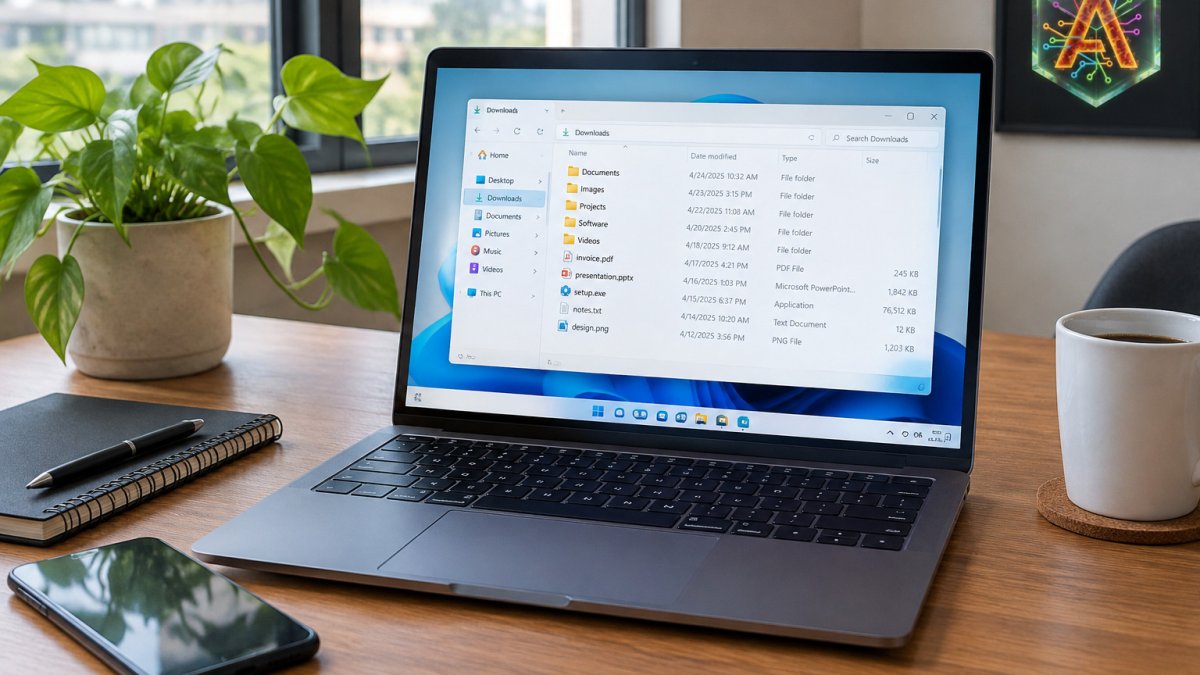
At Able, we build for exactly this problem. Able is a Windows desktop agent from Apex Empire Inc. that runs jobs on your PC after you say yes. It is not a screen recorder, and it does not replay a brittle script. When you ask Able to sort a downloads folder or rename a batch of files, Able reads the actual state of the disk and acts on it.
Recording-based tools capture coordinates. Macro-free tools capture intent. The first approach is fast to set up and fragile to maintain. The second takes a few minutes more to describe and survives routine UI changes.
That is the throughline of this guide: reliability comes from describing the outcome, not the keystrokes.
Desktop Automation Examples You Can Run This Week
Start with jobs that repeat on a schedule and have a clear finish line. Here are practical desktop automation examples you can set up without recording a single click:
- Sort downloads by type and date. Tell Able to move every installer into an Installers folder and every invoice into Finance, then confirm before it runs.
- Rename a folder of files to a consistent pattern. Client scans become
clientname-2026-01.pdfinstead ofscan_0043.pdf. - Clear temp files on a weekly trigger. Able runs the terminal command, shows you what it will delete, and waits.
- Pull logins from the vault. Able types credentials from Septaguard on this PC. The model never sees the vault password.

If you want a deeper walkthrough of local methods, see 5 ways to automate Windows tasks locally without cloud. A common mistake is automating a task you only do twice a year. Watch out: if the job changes shape every time, a macro-free agent still needs your approval at each branch, so the time savings shrink.
No-Code Desktop Automation: What It Can and Cannot Do
No-code desktop automation means you assemble a workflow in a visual builder instead of writing a script. That definition hides the more useful question: what mechanism is actually doing the work under the canvas? Four macro-free mechanisms show up in practice, and each is better at different jobs.
Visual workflow builders. You drag actions (open file, click element, type text, loop) onto a canvas and wire them together. They are the easiest on-ramp and the most common no-code option.
Accessibility-based control. Instead of clicking coordinates, the tool asks the operating system's accessibility layer for the named control and invokes it. On Windows this is the UI Automation tree; on macOS it is the accessibility API.
Scripting. PowerShell, Python, and shell scripts skip the UI entirely and act on files, processes, and APIs. Scripts are the most reliable option when the job is really about data and the filesystem rather than a screen.
AI-assisted computer use. A model reads the current screen state, decides the next action, and executes it, then re-reads the screen. This is the mechanism Able uses on Windows: you describe the outcome, Able inspects the actual disk and window state, and it acts after you approve.
When to pick which:
- Stable UI, high volume, no judgment: a visual workflow builder is fine and fast to set up.
- Legacy app with a clean accessibility tree: accessibility-based control beats coordinate clicking.
- Filesystem or data job with no GUI requirement: scripting wins on reliability.
- Shifting UI, judgment calls, or sensitive files: an intent-based agent like Able with approval gates is the better fit.
What no-code cannot do well is decide that an invoice belongs to a different client because the filename is wrong, or recover gracefully when an app throws an unexpected dialog mid-run.
Watch out: a visual builder that records coordinates rather than accessibility labels will look identical in a demo and fail twice as often in production once the target app updates.
For a side-by-side look at which Windows tools run native apps and which only touch the web, read best no-code desktop automation tools for Windows compared.
Power Automate Desktop Flows for Windows Users
Power Automate Desktop flows are Microsoft's answer to visual desktop automation on Windows. You drag actions into a flow, add UI elements, and set triggers. It is genuinely capable, and it ships with Windows at no extra cost for many users.
The catch is the model. A Power Automate Desktop flow still leans on recorded UI actions for desktop apps. When the target application updates its interface, the flow needs repair. Microsoft's own Power Automate documentation is clear that UI automation depends on element selectors that can change between app versions.
That is not a knock on the tool. It is a statement about mechanism. Selector-based automation is reliable when the UI is stable and painful when it is not.
How Power Automate Desktop Compares to a Windows Agent Like Able
Here is the honest comparison. Power Automate Desktop is a flow builder for Windows. Able is a Windows agent that executes a described job on your machine, with your approval.
| Capability | Power Automate Desktop | Able |
|---|---|---|
| Build method | Visual flow builder | Plain-language job description |
| Desktop app support | Selector-based UI actions | File, terminal, and vault actions |
| Breaks on UI change | Often | Rarely, because it reads disk state |
| Approval gate | Limited | Asks before it acts |
| Credentials | Stored in flow | Vault-typed, never sent to model |
| License model | Bundled or subscription tiers | One-time Windows license |
Able is not a monthly desktop subscription. You buy the license once, and fuel pays for the cloud thinking when you use chat. Organize, find, and vault work without a brain at all. Chat and research need the internet, because Able is not fully offline.
If you are weighing Able against a Mac-first agent, see how Able compares to Lapu. Lapu ships Mac; Able does not.
Reliability, Permissions, and Error Recovery Without Macros
Reliability without macros is not a feature you buy; it is a set of mechanics you design in. Here is what that means for a macro-free desktop job, and how Able handles each piece.
Waits, not sleeps. A fixed sleep 5 can cause flaky automation: too short and the step fires before the window is ready, too long and the job crawls. Macro-free tools can wait on a condition (window present, file exists, element enabled) rather than on the clock.
Scoped permissions. An agent should only touch the folders you name. Able works inside the paths you grant, so a bad instruction cannot wander into your client archive. Here is how to set that up: limit AI agent permissions on your Windows PC.
Credentials. Keep passwords in a local vault, never in a flow variable or a chat prompt. Able types vault logins from Septaguard on this PC, and the model never sees the vault password. That split matters: the cloud brain does the thinking, the vault does the typing, and the two never meet.
Approval gates. Every destructive or irreversible action should pause for a yes. Able asks before it acts, which is the whole point of a drill rather than a runaway script. If you want to understand the mechanics, read how to approve AI actions before they execute.
A common pattern is to treat these as a checklist on the first run of any new job: does it wait on conditions, does it checkpoint, does it validate, does it log, does it pause on the unexpected, and is it scoped to the folders it needs?
Watch out: a job that passes on your machine can still fail on a colleague's because folder paths, app versions, and accessibility trees differ, so test on the target machine before you schedule it.
Choosing a Macro-Free Automation Method for Your Windows PC
Pick by job type, not by brand loyalty. Use this decision framework:
- Stable, high-volume, structured job? A visual flow builder is fine.
- Job needs judgment or touches sensitive files? Use an agent with approval gates.
- Credentials involved? Keep them in a local vault, never in a flow or a chat prompt.
- One-off task? Do it manually. Automating a task you run twice wastes more time than it saves.
- Cross-application workflow with shifting UI? Favor intent-based execution over recorded actions.
A common mistake is over-automating early. Start with one job, measure the time savings, then expand. The Microsoft Windows documentation on Task Scheduler is a good primer for the scheduling half of any setup.
Start Your 3-Day Able Trial and Automate One Repetitive Task
The fastest way to know whether macro-free automation fits your workflow is to run one real job. Pick the task that annoys you most this week: the downloads folder, the renaming, the weekly cleanup.
Able is Windows software from Apex Empire Inc., sold at uable.store. The trial is 3 days with no card, and the license is one-time. There is no monthly subscription waiting at the end.
Here is what Able actually does. It organizes files and downloads on your PC. It runs terminal commands on your local machine. It types vault logins from Septaguard without the model ever seeing the vault password. It asks before it acts.
That is the Able idea in one line: with Able, you are able to hand off the busy work and keep the judgment calls.
The challenge is not finding a tool. It is trusting one with your files. Able earns that trust by scoping every action, pausing for approval, and keeping credentials on this PC. Start with one repetitive task, watch Able handle it, and decide from there. Get started with Able and clear one repetitive desktop task today.
Frequently Asked Questions
Can you automate desktop tasks without writing macros?
Yes. Macro-free automation uses visual workflow builders, UI automation, or a desktop agent that acts on the machine after you approve it. Tools like Power Automate Desktop let you drag steps into a flow, while Able runs file, terminal, and vault jobs on a Windows PC once you say yes. Neither approach requires you to write VBA or record keystrokes, and both can handle repetitive desktop tasks that would otherwise eat hours each week.
What is the best software to automate repetitive desktop tasks?
It depends on what you are automating. Power Automate Desktop is a Windows flow tool that some users prefer for Microsoft-centric workflows. For file organization, terminal commands, and vault-typed logins on Windows, Able is built for that job and runs locally after approval. Many users run both: Power Automate Desktop for scheduled flows and Able for on-demand desktop tasks that need a human yes.
Can AI automate tasks across Windows apps?
AI can help plan and trigger actions across Windows apps, but the execution layer matters. A chat model alone cannot click through your file system. Able pairs cloud brains for reasoning with a local Windows agent that moves files, runs terminal commands, and types vault logins on this PC. That split means the model never sees your vault password, and organize or find jobs still work without a brain connection.
What kinds of desktop tasks are safe to automate?
Safe candidates are repetitive, reversible, and low-risk: sorting downloads, renaming batches of files, copying spreadsheet data, filling internal forms, and running read-only terminal checks. Avoid automating anything that sends money, deletes without a backup, or changes permissions until you have tested the flow on a sample folder. With Able, every job waits for your yes, so you can review the action before it runs on your machine.