
 How-to
How to Approve AI Actions Before They Execute
Quick Summary
To approve AI actions before they execute, put a gate at the execution layer so each risky tool call, such as deleting files, sending messages or moving money, waits for a human yes. Classify actions by reversibility and impact, then require approval for anything you cannot undo. Able works this way on Windows: the agent proposes an action, and nothing runs until you approve it.
- Approval must happen before an action runs, because irreversible actions often cannot be undone afterward.
- Map every tool an agent can call, including files, terminal commands, APIs and saved logins.
- Sort actions by reversibility and impact, and always require approval for irreversible, high-impact ones.
- Place the gate where the tool call executes, so the agent cannot bypass it.
- Scope permissions to specific folders and commands, and review them every few weeks.
Table of Contents
- Why Approval Must Happen Before the Action Runs
- Step 1: Map Every Tool an Agent Can Call
- Step 2: Classify Actions by Reversibility and Impact
- Step 3: Put the Gate at the Execution Layer
- Step 4: Design an Approval Prompt People Will Actually Read
- Step 5: Set Permissions So Approved Actions Cannot Drift
- Running Approval Gates on a Windows Desktop Agent
- Getting Started with Able's Approval Flow on Your PC
- Frequently Asked Questions
How to Approve AI Actions Before They Execute
Last Updated: November 4, 2026
Why Approval Must Happen Before the Action Runs
Approval for AI actions has to happen before the action runs, because a clean approve AI actions step is the only real safety net. Once an agent deletes a file, sends a message or moves money, there is often no clean way back. Able is built around this idea: the Windows agent asks you first, then acts.
The risk is not theoretical. One widely shared example describes an AI agent that transferred $27 million without any human approval gate (Reddit r/AI_Agents discussion on AI agent execution risks). Stories like this are why teams are moving from reviewing actions after the fact to stopping risky actions before they fire.
Reviewing after the fact has a weakness too. Research on human-in-the-loop patterns has found that people approve most agent actions, often around 93% in some workflows, which leads to approval fatigue (YouTube analysis of human approval for AI agents). When people click "yes" almost every time, the review stops protecting anything.
So the goal is a gate that sits in front of the action, not a log you read later. Here is how to build one, step by step.
Step 1: Map Every Tool an Agent Can Call
Start with a full list of what the agent can touch. Every file path, terminal command, API and saved login is a tool call waiting to happen.
Write each tool down with three details:
- What it does: read, write, delete, send, or execute
- What it can reach: which folders, accounts or systems
- Who it affects: only you, or other people too
Able's approach here is folder scoping. The vault logins stay on this PC. The model never sees the vault password. Chat and research still use cloud brains like Claude, Gemini, Grok or Kimi over the internet, so anything sent to those brains leaves the machine. Know that boundary before you map the tools.
Step 2: Classify Actions by Reversibility and Impact
Not every action needs the same level of approval. Sort each tool call on two axes:
- Reversibility: Can you undo it in a minute, or never?
- Impact: Does it affect only this PC, or anyone outside it?
Then group the results:
- Low reversibility, high impact: always require approval (sending email, deleting files, running commands that change system state)
- High reversibility, low impact: allow automatically (reading a file, creating a new folder in a scoped area)
- Everything in between: require approval until you have seen the agent behave well for a while
This two-axis test is a common pattern among practitioners building approval rules for agents (Practitioner discussion on risk-based gating for AI agents). It gives you a short, defensible list instead of a vague feeling that some things are "risky."
Step 3: Put the Gate at the Execution Layer
The gate must sit where the tool call actually happens. If the model proposes an action and a separate app asks permission, but the agent can still run the command directly, the gate is theatre.

An execution-layer gate checks each call against your policy before it runs. Analysts increasingly point to this as the right place to enforce policy, since it covers actions no matter how the model was prompted (Airia analysis of execution-layer AI security).
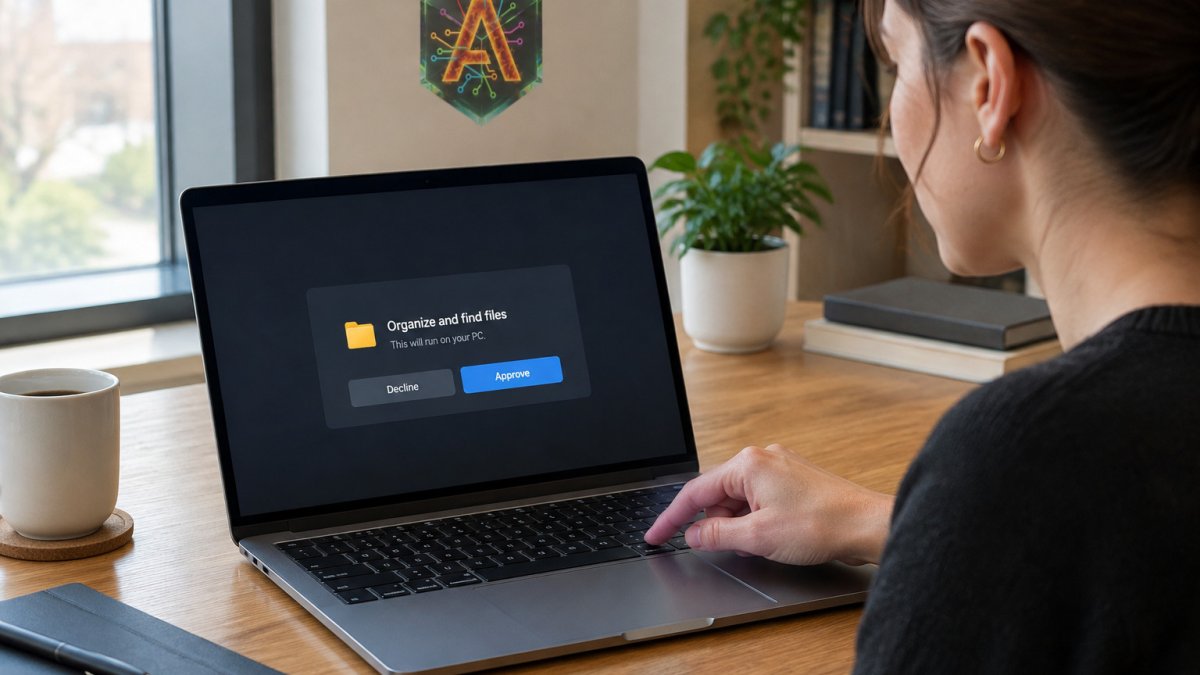
Able works this way on Windows. The agent proposes a file move, a terminal command or a vault login, and you approve it on the PC. Nothing runs until that yes is given.
Inline approval versus post-hoc review
These two patterns solve different problems.
- Inline approval stops the action before it runs. Use it for anything you cannot undo.
- Post-hoc review checks what already happened. Use it for low-risk actions where a mistake is cheap to fix, and for auditing patterns over time.
Most teams need both. Inline approval protects the irreversible actions. Post-hoc review catches drift and helps you tune the rules from Step 2.
Step 4: Design an Approval Prompt People Will Actually Read
A gate only works if the person approving it understands what they are approving. A vague prompt like "Allow this action?" trains people to click yes.
Each approval request should show:
- The exact action: the full command, the full file path, the full recipient
- The effect: what changes, and what cannot be undone
- The reason: a one-line explanation of why the agent wants to do it
- A clear default: make "no" the easy option
Keep it short. If the prompt needs scrolling to make sense, people will skip it.
Step 5: Set Permissions So Approved Actions Cannot Drift
An approval given today should not quietly grant more power tomorrow. Permissions drift when an agent is allowed to widen its own scope, or when a broad "yes" covers actions you never meant to allow.
Guard against this with a few rules:
- Scope each permission to specific folders and commands, not the whole drive
- Make approvals expire or apply to one action, not an open-ended category
- Require a fresh approval when the agent asks for new access
- Review the permission list every few weeks and remove what you no longer use
Good permission hygiene is a core part of AI agent security best practices, and it is easier to keep when the agent runs on your own PC with scoped access.
Running Approval Gates on a Windows Desktop Agent
Most people approving AI actions are working on a Windows machine, so the gate needs to live there. Able runs as a desktop agent on Windows 10 and 11, not inside a browser tab. That means file operations, terminal commands and vault logins run on the PC after you say yes.
A practical setup looks like this:
- Decide which folders the agent may touch.
- Approve deletes, sends and system commands one at a time.
- Review what the agent proposes before you say yes.
Cloud brains handle the thinking, but the execution decision stays with you on this PC. Able is not fully offline. Organizing, finding and vault work run without a brain, while chat and research need an internet connection.
The table below summarises the three setup steps for running an approval gate on a Windows desktop agent.
| Step | What to do | Note |
|---|---|---|
| Scope folders | Decide which folders the agent may touch | Limit access before any task runs |
| Approve risky actions | Approve deletes, sends and system commands one at a time | Each action needs its own yes |
| Review proposals | Check what the agent proposes before saying yes | Nothing runs until you approve |
Getting Started with Able's Approval Flow on Your PC
If you want to test an approval gate before trusting an agent with real work, start with a free trial. Able offers a 3-day trial with no card required, so you can try it on your own files first.
Download Able and begin with one folder and one low-risk task. Then tighten or widen how you approve actions from there. Try Able before you buy to see the flow on your Windows PC.
Able is a one-time license, not a monthly desktop subscription. See current pricing on the Able site.
Frequently Asked Questions
Why is human approval necessary for AI agents?
An AI agent that can call tools can delete files, send messages or move money in seconds. Approval gives a person a chance to stop an action whose consequences they can judge. Approval fatigue is a real risk, since reviewers who click yes on dozens of prompts stop reading them, so approval should be reserved for actions that are hard to reverse or costly if wrong.
Does Able require approval for every AI action?
No. Able asks for your yes before it runs jobs on your PC. Able also keeps vault passwords on this PC, so the model never sees them during an approved login. Chat and research use cloud brains over the internet, and fuel pays for that thinking.
How do I set up approval workflows for desktop AI?
Start by listing every tool the agent can reach, including file operations, terminal commands and credential use. Then classify each as reversible or irreversible and as low or high impact. Put the gate on the tool call itself, so the action cannot run until approval is recorded. Test with a dummy folder before using real data. Able's trial runs for 3 days with no card, so you can try it on your own Windows PC.
What are the risks of unapproved AI agent actions?
The main risks are irreversible deletion, unintended transfers and actions taken on the wrong target because the agent misread context. Approval checked after an action has already run only produces a record, not protection. Inline approval, where the tool call waits for a decision, prevents the action itself. Keeping an audit trail of what was proposed, approved and executed helps you review mistakes and tighten your rules over time.
Able turns an approval gate into a habit instead of a chore. Start small, scope tightly, and let the agent earn wider access over time. With Able, you are able to automate the tasks that matter while keeping the final yes in your hands.