 How-to
How to Organize Windows Files With AI and Able
Last Updated: November 12, 2026
Quick Summary
To organize Windows files with AI, point an agent like Able at one folder, describe the sorting rule in plain language, and approve each proposed move before it executes. Able runs file operations locally on your PC, so nothing moves without your yes and you can undo a bad run.
- Start with your Downloads folder, prove the rules, then widen to other directories.
- Able lists each file and its destination, and nothing moves without your approval.
- Able is a one-time Windows license with a three-day trial, no card required.
- Organizing, finding, and vault work run without a brain; chat and research use cloud brains.
- Able is not fully offline, and no sorter reads files exactly the way you do.
Table of Contents
- Why AI File Sorting Beats Manual Folder Cleanup
- What Makes a Good AI File Sorter for Windows
- How to Automatically Sort Files in Windows With Able
- How to Organize Your Downloads Folder With AI
- AI File Organizer Safety: What Stays on Your PC
- Custom Rules and Cloud Storage Integration
- Set Up Able and Sort Your First Folder
- Frequently Asked Questions
Why AI File Sorting Beats Manual Folder Cleanup
Manual folder cleanup fails because it asks you to be the sorting engine. You open a folder, judge each file, drag it somewhere, forget where you put it, and repeat next month. An AI file sorter for Windows flips that: it reads the file, proposes a destination, and lets you approve the move. Able is built exactly this way, a Windows desktop agent from Apex Empire Inc. that runs jobs on your PC after you say yes. Below, we'll show you how to organize Windows files with AI without handing your drive to a cloud service, and how Able helps you organize Windows files one approved move at a time.
The gap is real. According to the Nitro AI in Document Workflows Report, most organizations now juggle six or more separate document tools, and the mess lands on the desktop. Industry documentation for 2026 notes that AI file organizers are shifting toward local processing so sensitive documents stay encrypted at rest and in transit (FileXAI on AI file organization). That is the split that matters: the sorting logic can be smart while the files stay put.
A sorter that moves files without asking is a liability, not a tool. If you want the deeper workflow, our guide on automating local file management on Windows walks through the full loop.
What Makes a Good AI File Sorter for Windows
A good AI file sorter for Windows does four things: it reads file content, proposes a folder structure, asks before acting, and can undo what it did. Miss the third item and you have a script with a grudge.
What separates the useful tools from the demos:
- Approval gates. Every move shows up as a proposal you accept or reject. This is the core of how to approve AI actions before they execute.
- Content reading, not just extensions. A PDF named
scan_0042.pdfneeds its text read to know it belongs in Invoices. - Batch renaming and metadata tagging so file retrieval works months later.
- Undo. If a run misroutes a folder, you need one action to reverse it.
- Local execution. The agent runs on your machine, not in a browser tab.
The honest limitation: no sorter reads a file the way you do. Scanned handwriting, odd formats, and half-finished drafts will still need your eye. Expect to correct a handful of proposals per run, not zero.
How to Automatically Sort Files in Windows With Able
To automatically sort files in Windows with Able, you describe the job in plain language, review the proposed moves, and approve them. Able then executes the file operations on your PC.
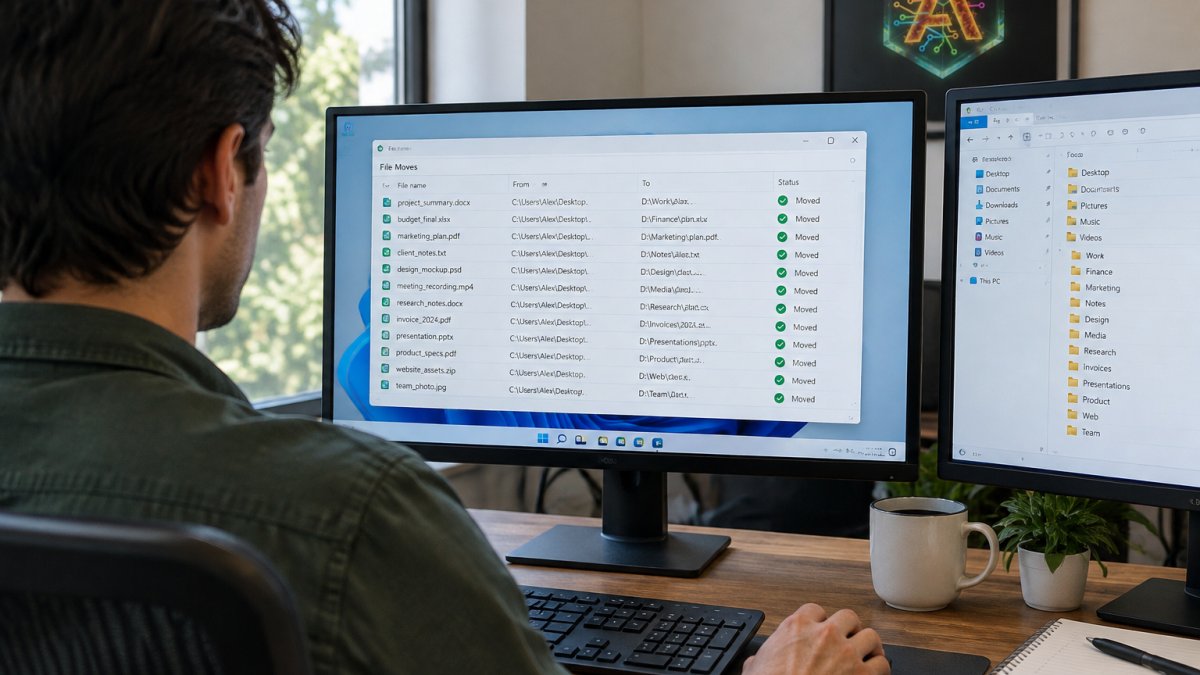
The sequence looks like this:
- Point Able at a folder. Downloads, Desktop, or a project directory.
- State the rule in words. "Sort these into folders by document type and year."
- Review the proposal. Able lists each file and its destination.
- Approve or reject. Nothing moves without your yes.
That approval loop is the whole design. Able is not Ollama, LM Studio, Jan, or Open Interpreter, which run local models. Able is the Windows file and terminal agent. Organizing, finding, and vault work run without a brain; chat and research use cloud brains like Claude, Gemini, Grok, or Kimi over the internet. If you want the full SKU split, see the Windows desktop AI agent page.
| Step | What you do | What Able does | Time |
|---|---|---|---|
| Scope | Pick a folder | Reads the directory | Under a minute |
| Instruct | Type the rule | Classifies files | A few minutes |
| Review | Approve or reject | Holds the queue | Your pace |
| Execute | Confirm | Moves and renames | Seconds |
| Verify | Spot-check | Logs and undo | Under a minute |
How to Organize Your Downloads Folder With AI
The Downloads folder is a sensible first target because it is often the least curated folder on a Windows machine. To organize a Downloads folder with AI, scope the agent to that one directory, set rules for the file types you actually receive, and approve the batch. Small scope means small mistakes.
Watch out: pointing an agent at your entire user profile on the first run is the most common mistake. A bad rule then touches Documents, Desktop, and project folders at once. Start with Downloads, prove the rules, then widen.
Privacy matters here too. If you handle client material, read how to keep AI files private on your Windows PC before your first batch. Able's vault keeps credentials local, and the model never sees the vault password.
AI File Organizer Safety: What Stays on Your PC
With Able, the split is explicit. File operations run locally on your Windows PC. Chat and research use cloud brains (Claude, Gemini, Grok, Kimi) over the internet. Organizing, finding, and vault work do not need a brain. Able is not fully offline. For the full SKU split, see the Windows desktop AI agent page.
What that looks like with Able in practice:
- Vault logins stay local. Able types credentials from the vault on this PC. The model never sees the vault password.
- You approve before execution. No silent moves, no background deletions.
- Terminal commands run on your machine, which is why the approval step is not optional.
- Scoped folders beat broad access. Point Able at Downloads first, prove the rules, then widen.
The honest caveat: Able is not fully offline. If your rule needs the model to interpret messy content, that step uses the internet. Sorting by extension, name pattern, or date works without a brain. For the trust details, read what is true about Able.
Custom Rules and Cloud Storage Integration
Custom rules let you move beyond simple cleanup. Write a rule once, and Able applies it on each approved run. Start with file type, then add conditions, and test on a small set of files before running a full folder.
Able handles the local side of this loop, scoped folders, layered rules, approval gates, and undo, so you are able to test a rule on ten files before it touches five hundred. For the platform split and what runs without a brain, see the Windows desktop AI agent page.
Set Up Able and Sort Your First Folder
Setting up Able is straightforward. Install it on Windows 10 or 11, start the trial, then point Able at one folder and approve your first batch of moves.
The setup order that works:
- Install Able from the store and open it.
- Run the three-day trial. No card required.
- Pick your Downloads folder as the first scope.
- Write one simple rule and review the proposal.
- Approve and check the result.
- Add a second rule only after the first behaves.
Able is a one-time Windows license, not a monthly desktop subscription, and fuel pays for the cloud thinking when a job needs it. Mac and Linux are planned, not shipping. If you are weighing options, the comparison at Able versus lapu.ai covers the platform difference directly.
The challenge is not knowing which files are messy. It is trusting something else to touch them. Able earns that trust one approved move at a time, with a vault that stays on your PC and a 3-day trial with no card required.
Able gives you a Windows agent that sorts, renames, and finds files after you approve each move. The one-time license, the local vault, and the approval gate mean you stay in control of every operation. Get started with Able and turn a chaotic Downloads folder into a structure you can actually search.
Frequently Asked Questions
Can I use AI to organize my computer files?
Yes. An AI file organizer reads file names, types, and sometimes content, then proposes or performs moves into a folder structure. On Windows, Able is a desktop agent that does this after you approve each job. It runs on your PC rather than in a browser tab, so the file operations happen locally. Chat and research inside Able still use cloud models over the internet, so it is not fully offline, but the sorting itself runs on your machine.
Is it safe to let AI organize my files?
Safety comes down to approval and reversibility. Able only runs jobs after you say yes. Keep a backup of anything irreplaceable, start with a single folder like Downloads, and check the results before widening the scope. Vault logins typed by Able stay on this PC, and the model never sees the vault password. Read the trust page at uable.store/trust for the full breakdown before you commit.
Can an AI file organizer work without an internet connection?
Partly. Able's organize, find, and vault features work without a brain, meaning you can sort and locate files on this PC with no connection. Chat and research need internet because those use rented cloud brains. If you want a fully offline local model, that is a different category of software, and Able is not that. The split is documented at uable.store/windows-desktop-ai-agent so you know exactly what runs where.
How do I try Able before buying?
Able offers a 3-day trial with no card required. Install it on your Windows 10 or 11 machine, point it at one messy folder, and watch how it proposes moves before you approve them. If it fits your workflow, the license is one-time, not a monthly desktop subscription. Start the trial at uable.store/trial and check current pricing at uable.store/#pricing.