 Listicle
8 Desktop Productivity Software Picks That Cut Busywork
Last Updated: November 5, 2026
Quick Summary
Desktop productivity software is any program installed on your own machine, rather than opened in a browser tab, that helps you finish work such as managing tasks, tracking time, taking notes, organizing files, or running commands. Our eight picks cover file and terminal work, documents, email, notes, tasks, time tracking, knowledge management, and focus.
- Able is a licensed Windows 10/11 desktop agent that organizes files, runs terminal commands, and types vault logins after you approve.
- Able is not fully offline: organize, find and vault work without a brain, while chat needs a connection.
- Install two tools, not five: one capture tool, one time tool, and one place for files and commands.
- Before installing, confirm the app runs on Windows 10, needs no separate runtime, and works if your internet drops.
- Able is a one-time license with a 3-day trial and no card required.
Table of Contents
- Desktop Productivity Software: What Earns a Place on Your PC
- Quick Comparison: Desktop Productivity Software at a Glance
- Productivity Software Examples Worth Installing
- Able: The Windows Agent That Acts After You Say Yes
- Microsoft 365 and Outlook: The Suite and the Inbox
- Obsidian: Notes That Stay on Your Machine
- Todoist: Task Tracking That Stays Out of the Way
- Toggl Track: Time Tracking With One-Click Timers
- Notion: Knowledge Management for Teams
- Focus To-Do: Pomodoro Timers for Deep Work
- A Calendar Planner of Your Choice
- Desktop Productivity Software for Windows 10: Compatibility Checks First
- Free Desktop Productivity Software That Does Not Nickel-and-Dime You
- Best Productivity Apps for Students on a Tight Budget
- Privacy, Security and Data Portability: The Questions That Decide It
- Install Able and Put It to Work on Your Windows PC
- Frequently Asked Questions
Desktop Productivity Software: What Earns a Place on Your PC
Desktop productivity software is any program installed on your own machine, rather than opened in a browser tab, that helps you finish work: managing tasks, tracking time, taking notes, organizing files, or running commands. According to Business Research Insights' productivity software market forecast, the productivity software market is estimated at USD 98.86 billion in 2026 and projected to reach USD 193.21 billion by 2035.
At Able, we sell one of these programs, so we have a bias. We also know what separates a tool that earns a permanent taskbar spot from one you uninstall in a week. Below are eight picks, what each is good at, and where each falls short.
How We Tested and What We Left Out
Our scope is narrow on purpose: desktop applications that install on Windows and do real work locally. We excluded browser-only tools, mobile-first apps, and anything that needs a cloud account before it opens a file. We also weighted OS compatibility, total cost including renewals, and what happens to your data when you stop paying.
Quick Comparison: Desktop Productivity Software at a Glance
Here is the short version before the detail:
| Tool | Type | Pricing Model | Best For | Standout Strength |
|---|---|---|---|---|
| Able | Windows desktop agent | One-time license | File, terminal and vault work on Windows | Acts on your PC after approval |
| Microsoft 365 | Office suite | Subscription | Documents and email | Word plus Copilot AI |
| Outlook | Email and calendar | Part of Microsoft 365 | Inbox and scheduling | Email and calendar together |
| Obsidian | Note-taking | Not verified in our research | Local notes | Notes stored on your machine |
| Todoist | Task tracking | Free and paid tiers | To-do lists | Fast capture |
| Toggl Track | Time tracking | Free and paid tiers | Billable hours | One-click timers |
| Notion | Knowledge management | Free and paid tiers | Team wikis | Flexible pages |
| Focus To-Do | Focus and pomodoro | Free and paid tiers | Deep work blocks | Built-in timer |
Pricing for several of these changes often, so check each vendor's page before you commit. If you are weighing Able against another one-time Windows agent, our Able vs Rosply comparison lays out the differences side by side.
Productivity Software Examples Worth Installing
Real examples beat abstract advice. The eight tools below cover the main jobs a desktop setup needs: acting on files, writing documents, managing email, taking notes, tracking tasks, tracking time, organizing knowledge, and protecting focus.
Able: The Windows Agent That Acts After You Say Yes
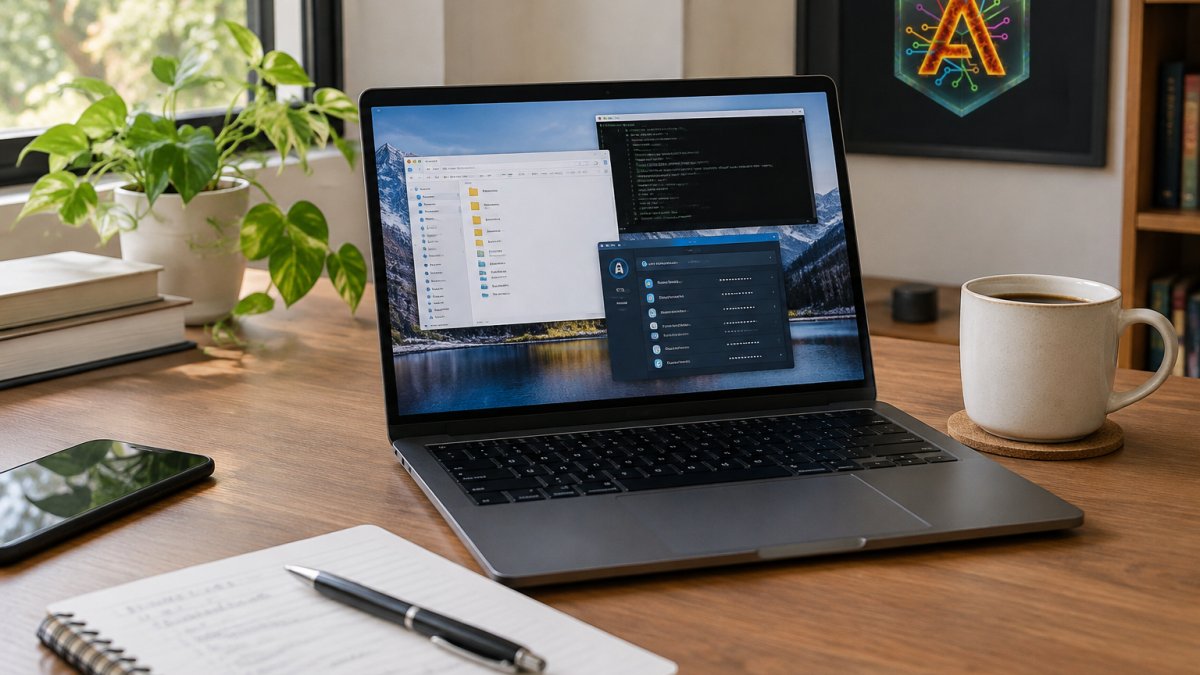
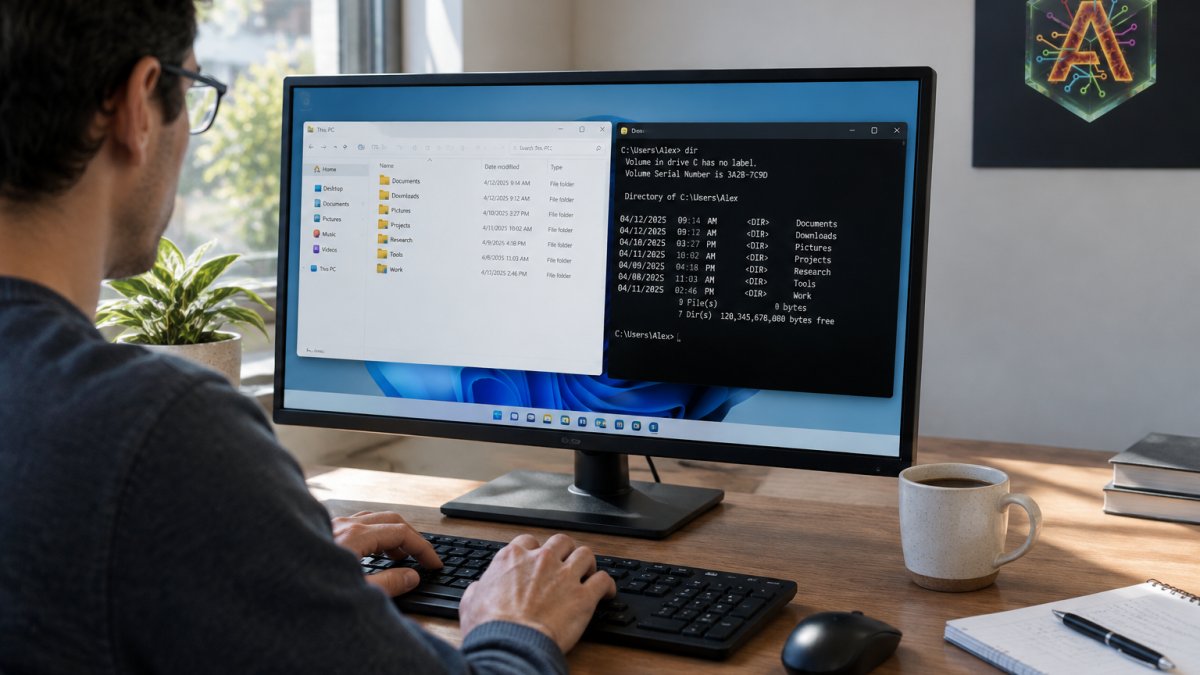
Able is a licensed Windows 10/11 desktop agent from Apex Empire Inc. that organizes and finds files, runs terminal commands, and types vault logins from Septaguard on this PC after you say yes. The model never sees the vault password.
That approval step is the whole point. Most AI tools give advice in a chat window and leave the clicking to you. For the full breakdown, see how the Windows desktop AI agent works.
Best for: Windows users who want files organized and commands run, not just described, a consultant cleaning a Downloads folder, an analyst running a repeatable rename-and-move job, or anyone who wants a vault login typed without exposing the password. Skip if: you are on a Mac today. For a Mac-first agent, our Able vs lapu comparison is the fair read.
Microsoft 365 and Outlook: The Suite and the Inbox
Best for: writers, editors, and anyone whose day is mostly Word documents and email. Skip if: you only need a to-do list and a calendar.
Obsidian: Notes That Stay on Your Machine
Best for: researchers and writers who want notes readable in any text editor and portable by copying a folder. Skip if: you need real-time team editing.
Todoist: Task Tracking That Stays Out of the Way
Best for: solo professionals and students who need a list that opens in under a second. Skip if: you need Gantt charts or resource planning, because Todoist is a task tracker, not a project management suite.
Toggl Track: Time Tracking With One-Click Timers
Best for: freelancers and consultants who bill by the hour and need defensible time records. Skip if: you want automatic app-level tracking across a team, because that is a different product category.
Notion: Knowledge Management for Teams
Best for: remote teams that need one shared home for docs, meeting notes, and simple trackers. Skip if: you work alone and offline, because Notion is browser-first and its value comes from collaboration.
Focus To-Do: Pomodoro Timers for Deep Work
Best for: students and anyone who loses afternoons to context switching. Skip if: you already use Todoist and a system timer, because the overlap is large.
A Calendar Planner of Your Choice
The eighth slot is deliberately open. Outlook covers calendar for Microsoft 365 users, and most Windows setups already have a calendar that syncs. The rule: pick the calendar your email already lives in, and do not install a second one.
Install two, not five. The pattern that works is one capture tool (Todoist or Focus To-Do), one time tool (Toggl Track), and one place for files and commands (Able on Windows). For a wider field, see our roundup of the best desktop AI tools for Windows.
Desktop Productivity Software for Windows 10: Compatibility Checks First
Compatibility is where most buying mistakes happen, and it is the gap competitors miss.
Here is how the picks compare on the compatibility questions that actually decide an install:
| Tool | Windows 10 | macOS | Linux | Offline behavior | Admin account needed |
|---|---|---|---|---|---|
| Able | Yes, native | Planned, not shipping | Planned, not shipping | Organize, find and vault work without a brain; chat needs internet | Standard install |
| Microsoft 365 | Yes | Yes | Web only | Desktop apps open offline; Copilot needs internet | Yes for install |
| Obsidian | Yes | Yes | Yes | Fully local notes | No |
| Todoist | Yes | Yes | Web only | Read-only offline, sync needs internet | No |
| Toggl Track | Yes | Yes | Web only | Timer runs offline, sync needs internet | No |
| Notion | Web-first | Web-first | Web-first | Needs internet | No |
| Focus To-Do | Yes | Yes | Web only | Timer runs offline | No |
Able runs natively on Windows 10 and 11. That matters because many "local AI" tools require you to set up a model runtime first, which is a different job entirely. Able is not Ollama, LM Studio, Jan, or Open Interpreter: those run local models, while Able is the Windows file, terminal and vault agent that acts on this PC after you say yes. Check the Windows compatibility details before you download anything.
Watch out: a tool that advertises "Windows support" may mean a web wrapper that stops working the moment your connection drops. Test the offline path on day one, not after you have moved your notes into it.
Accessibility and hardware are the other half of compatibility. For the data-handling side, see how Able handles trust.
Free Desktop Productivity Software That Does Not Nickel-and-Dime You
Free desktop productivity software is worth taking seriously, but read the limits before you trust it with real work. The pattern to watch: a generous free tier that caps at a contact count, a project number, or a sync limit, then charges to lift it.
- Todoist free tier covers basic task tracking for one person.
- Toggl Track free tier handles time tracking for small teams.
- Obsidian lets you keep local notes without paying, based on its own download terms.
- Focus To-Do covers pomodoro timers at no cost.
Able is not free, and we will not pretend otherwise. It is a one-time license with a 3-day trial and no card required, which is a different trade: you pay once instead of monthly, and you test it before you buy.
Best Productivity Apps for Students on a Tight Budget
Students need three things from productivity apps: a to-do list, a time tracker, and a note system that survives a laptop swap. The best productivity apps for students are usually the free tiers of Todoist, Toggl Track and Obsidian, run on a Windows laptop that stays offline-friendly during exams.
Budget rule we would give any student: never pay monthly for something you can own or use free. A one-time purchase beats a subscription when your income is irregular.
Privacy, Security and Data Portability: The Questions That Decide It
Ask every vendor four questions before you install: where does the data live, who can read it, what happens when you cancel, and can you export everything. Privacy-first tools answer all four in plain language; subscription suites often answer none.
Able's answer: vault passwords are typed on this PC, and the model never sees them. Chat and research use cloud brains, which means those queries leave your machine. If approval gates matter to your workflow, read how to approve AI actions before they execute.
Install Able and Put It to Work on Your Windows PC
The challenge is simple: your PC holds the files, the logins and the terminal, yet most AI tools cannot touch any of it. Able closes that gap. It organizes downloads, finds files, runs commands, and types vault logins, all after you say yes, with a one-time license and a 3-day trial that needs no card.
You are able to try it on your own machine before you decide. Download Able for Windows and start the 3-day trial, then point it at your Downloads folder and watch what it does with approval on.
Frequently Asked Questions
What is some good productivity software for PC?
It depends on the job you want done. For files, terminal commands and vault-typed logins on Windows 10 or 11, Able is the pick: it runs on this PC and acts after you say yes, with a one-time license and a 3-day trial that needs no card. For documents and email, Microsoft 365 and Outlook cover the office basics. For private notes, Obsidian keeps your writing in local files you control.
Is desktop productivity software better than web apps?
Desktop software wins when the work touches local files, terminal commands or saved credentials. A browser tab cannot reorganize your Downloads folder or run PowerShell on your machine. Able is built for exactly that: file organization, terminal work and vault logins stay on this PC, while chat and research use cloud brains over the internet. Web apps still make sense for shared documents and email that live online anyway.
Can desktop productivity software work offline?
Some of it can, and the split matters. Able's organize, find and vault features work without a brain; chat needs an internet connection because the thinking runs on cloud models. Obsidian stores notes locally, so reading and writing work offline. Microsoft 365 and Outlook lean on the cloud for sync and email, so expect degraded function without a connection. Check each tool's offline claim before you rely on it on a plane.
Which productivity apps are useful for students?
Students get the most from free tiers and one-time purchases. Obsidian's personal use is free and keeps notes on your laptop. Microsoft 365 plans include Word and Copilot, and many schools provide access. Able suits students who manage large download folders, research files or lab machines and want an agent that runs terminal commands after approval, with a 3-day trial to test it before buying.
Get started with Able and let your Windows PC do the busywork while you keep the final say.