 Comparison
Can AI Agents Safely Access Your Windows Apps?
Last Updated: November 8, 2026
Quick Summary
AI agent permissions for Windows apps control what an agent can read, change, or run on your PC, and access should be granted per task with explicit consent. Narrow grants, such as one folder with allow-once approval, limit risk. Terminal access needs per-command review, since it is the highest-risk permission.
- Grant access per job, not system-wide, and choose allow-once for exploratory tasks.
- Scope each grant to the folders a specific task needs, not the whole user profile.
- Approve terminal commands one at a time and keep administrative rights out of the default setup.
- Check NTFS permissions and cloud copies after revoking, since the app toggle may not remove them.
- Start with one folder and one task, then widen access only if the job requires it.
Table of Contents
- How AI Agent Permissions for Windows Apps Actually Work
- Windows AI Desktop Agent Access to Files and Folders
- AI Agent File Access Permissions: Consent, Scope and Known Folders
- AI Agent Terminal Permissions and Why They Need Tighter Limits
- Power Automate Local File Management Workflows Compared
- Side-by-Side Comparison of Windows Agent Permission Models
- Set Up Your Permissions Today and Start With a Three-Day Trial
- Frequently Asked Questions
How AI Agent Permissions for Windows Apps Actually Work
AI agent permissions for Windows apps decide what an agent can read, change, or run on your PC. That default matters, because it means access is a choice you make, not a setting you inherit.
Microsoft reports that 29% of employees have turned to unsanctioned AI agents for work tasks (Microsoft Security Blog on the Cyber Pulse report). That gap between what people do and what IT approves is why permission models have become a real concern. Permission controls are only as useful as the habits behind them.
Able, the Windows desktop agent from Apex Empire Inc., works on this principle: it acts on your PC only after you say yes. Its vault stays on this Windows PC, and the model never sees the vault password. Chat and research still run through cloud brains over the internet, so Able is not fully offline. It is a Windows file, terminal, and vault agent, not a local model runner like Ollama or LM Studio.
Windows AI Desktop Agent Access to Files and Folders
A Windows AI desktop agent reaches files through the same paths you do: known folders such as Documents, Desktop, and Downloads, plus any folder you add. The practical question is which of those paths the agent can touch without asking again.
Microsoft's guidance on Windows agents describes a model in which access is requested and granted per resource rather than handed over system-wide (Windows Experience Blog on agent permissions). Read that way, the right setup is narrow: grant the folders a task needs, then stop.
Able can organize and find files on this PC after you approve the job. Scope is defined by what you allow, not by what the agent could theoretically reach.
AI Agent File Access Permissions: Consent, Scope and Known Folders
File access permissions come down to three decisions: who approves access, how far it extends, and how long it lasts. Consent should be explicit, scope should match the task, and access should expire or be revocable. Most ranking pages stop there. The practical gap is that they rarely explain the Windows mechanisms underneath those three decisions, so readers cannot tell what a prompt is actually protecting.
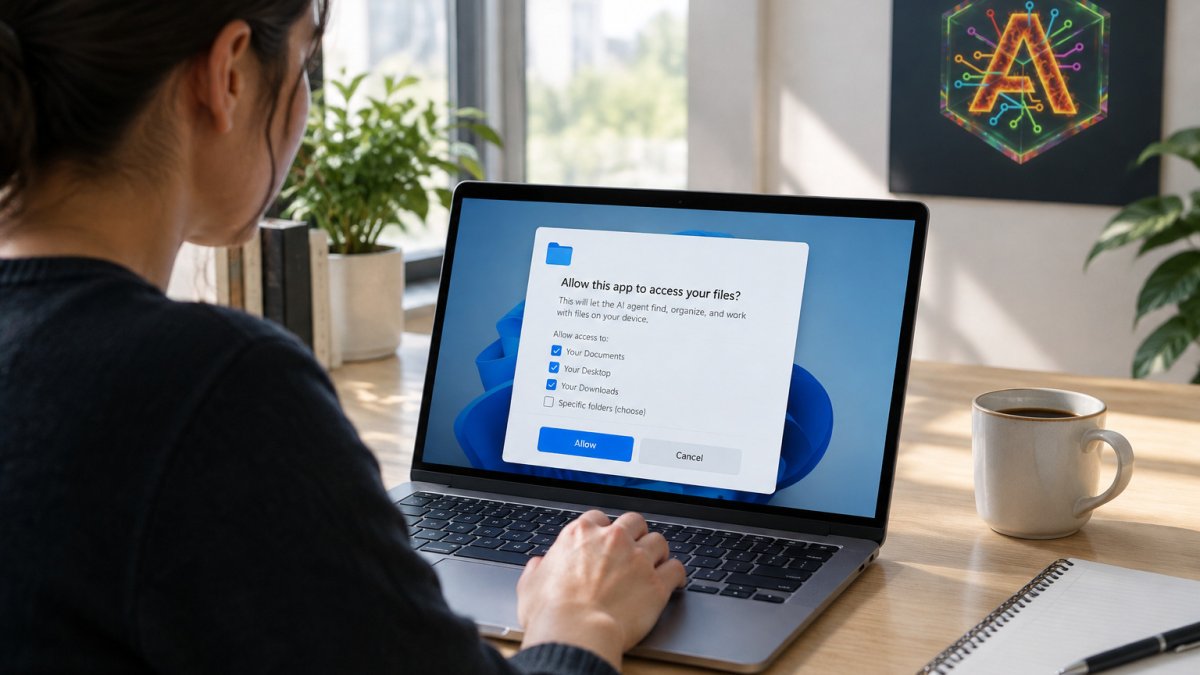
On Windows, an agent reaches files through three layers. The first is the known-folder layer: Documents, Desktop, Downloads, Pictures, and similar paths are resolved per user, and OneDrive Known Folder Move can silently redirect them to a synced location. An agent granted "Documents" may therefore be reading a cloud-synced copy rather than a purely local one. The second is the filesystem ACL layer: NTFS permissions decide whether the agent's process token can read, write, or delete a given path, and an agent running under your standard user account inherits your rights unless it is deliberately constrained. The third is the agent's own consent layer, the prompt you see, which is a UX gate on top of the OS gate, not a replacement for it.
That layering explains why "allow once" and "always allow" behave differently. Allow-once keeps the consent decision fresh for each job, so a task that only needs to sort Downloads cannot quietly expand into Documents on the next run. Always-allow converts a one-time decision into standing access, and standing access is what turns a benign organizer into a broad reader of your personal files. A common pattern among cautious users is to grant allow-once for exploratory tasks and reserve always-allow for a single narrow folder that the agent uses repeatedly.
Scope should be defined by the task, not by convenience. If the job is "rename the invoices in this folder," the grant should be that folder, read and write, not the whole user profile. If the job is "find the file I saved last week," a read-only grant across the folders you actually use is enough. The mistake to avoid is accepting a broad always-allow prompt because the dialog is repetitive; that trades a few seconds of friction for standing access to everything under your profile.
Watch out: revoking access is not always obvious after the fact. On Windows, removing an agent's folder grant inside the app may leave the underlying NTFS permissions untouched, and a cloud-synced known folder may still hold copies in the cloud recycle bin or version history. Before you rely on a revoke, confirm three things: the agent's own permission list no longer shows the folder, the folder's NTFS permissions do not include a lingering allow entry for the agent's account, and any synced copy has been cleaned up in the cloud service as well.
Able handles this in the same spirit, with the consent layer kept in your hands. Able can organize and find files on this PC after you approve the job, and its vault stays on this Windows PC with the model never seeing the vault password. Scope is defined by what you allow, not by what the agent could theoretically reach. For a practical walkthrough of narrowing grants before you start, see How to Limit AI Agent Permissions on Your Windows PC, and check Able's data-handling commitments on the trust page against your own requirements.
AI Agent Terminal Permissions and Why They Need Tighter Limits
Terminal access is the highest-risk permission an agent can hold. A command can delete files, change settings, or call out to the network in seconds, and a file prompt does not always make the consequence obvious.
For that reason, terminal permissions deserve per-command review. Approve each command before it runs, and keep administrative rights out of the default setup. Least privilege means the agent gets the shell access it needs for one job, not standing control of the machine.
If you want a step-by-step approach, 7 Steps to Automate Terminal Commands With Local AI walks through approval gates and per-command review. Able runs terminal commands on your local machine only after you say yes, which keeps the approval step in your hands.
Power Automate Local File Management Workflows Compared
Power Automate is Microsoft's workflow tool, and it can move and organize files as part of cloud-connected flows. It suits repeatable, rule-based tasks across services. A local file agent suits tasks that depend on what is on this PC right now. That much is true of every comparison you will read. What most of them skip is the permission model, which is where the two approaches actually diverge.
A desktop agent works the other way around. Access is granted per job on the machine where the files live, and the consent decision is visible at the moment of action rather than buried in a connection. That makes a desktop agent a better fit for one-off or judgment-dependent tasks, such as sorting a messy Downloads folder or finding a file you half-remember, where the scope is hard to predict in advance. Power Automate is a better fit for scheduled, cross-service work, such as moving attachments from a shared mailbox into a SharePoint library on a timer.
Choose based on where your files live, who has to approve the work, and whether you need a scheduled trigger or a human in the loop.
Able sits on the desktop side of that line. It runs jobs on this PC after you say yes, and it is a Windows file, terminal, and vault agent rather than a cloud workflow engine. Able is not fully offline: organize, find, and vault work without a brain, while chat needs internet. If your work is repeatable and cross-service, Power Automate is the natural tool. If your work is "do this on my PC, now, with my approval," Able is the Windows agent built for that, and you are able to keep the consent decision in your hands. For a direct look at how it differs from a monthly alternative, see Able vs Lapu AI.
Side-by-Side Comparison of Windows Agent Permission Models
| Model | Where access is granted | Typical scope | Best for |
|---|---|---|---|
| Windows 365 for Agents | Hosted Windows environment | Desktop apps in a managed environment | Legacy apps and authenticated browser sessions |
| Power Automate | Cloud connectors and service accounts | Connected services and flows | Repeatable cross-service workflows |
| Able | Per-job approval on this PC | Folders and terminal you allow | Organizing files and running commands on your own Windows PC |
| Authorization platforms (WorkOS FGA, Oso, Cerbos) | Policy layer you build | Application resources you define | Enterprise teams governing agent access |
Able is a one-time Windows license, with a 3-day trial and no card required. Compare that against your own permission needs before you commit. For a direct look at how it differs from a monthly alternative, see Able vs Lapu AI.
Set Up Your Permissions Today and Start With a Three-Day Trial
Start with the smallest grant that does the job. Choose one folder, one task, and an allow-once approval. Review what the agent did, then widen access only if the task needs it.
You can test this yourself with the Able trial. The trial runs for 3 days with no card. Setting permissions this way lets you judge the consent model before you rely on it.
For more on the reasoning behind the design, read why Able is built this way. Able is the Windows agent that does what you ask after you say yes, so the permissions stay yours to set.
Frequently Asked Questions
What permissions should an AI agent have on Windows?
An AI agent on Windows should start with limited permissions and receive access to resources only when you explicitly grant it. Keep access scoped to the folders a task needs, such as Downloads or a specific project folder, rather than the whole user profile. Review what each agent can reach in its settings, and revoke access you no longer use. Able, the Windows desktop agent from Apex Empire Inc., works this way: it acts on this PC after you say yes, so you decide the scope of each job before it runs.
Can an AI agent access files on my Windows PC?
Yes, an AI agent can access files on your Windows PC when you grant it permission to do so. Permission prompts and per-agent settings decide which folders it can read or change. Able can organize and find files on this PC after you approve the job, while chat and research use cloud brains over the internet. Check the folders listed in each request before you approve it.
Should an AI agent ask before running terminal commands?
Yes. Terminal commands can change system settings, delete files, or install software, so an agent should ask before executing them. Allow-once approval is safer than always-allow for commands you have not reviewed. Able runs terminal commands on your local machine only after you say yes, and you can read the command before approving it. Limit terminal permissions to the tasks you actually automate.