 Comparison
AI Desktop Assistant 2026: What Works on Windows PC
Quick Summary
An ai desktop assistant is software that works on your computer instead of only answering questions in a chat window, able to see files, open applications and carry out tasks after you approve them. Able is a Windows agent that does this work on the PC itself, while chat and research still go to cloud models over the internet.
- Able organizes and finds files, runs terminal commands, and types vault logins on the Windows PC after you say yes.
- Chat and research are handled by cloud models such as Claude, Gemini, Grok, or Kimi, so Able is not fully offline.
- Run a four-step trust ladder, starting with a read-only pass, before letting an assistant touch real folders.
- Test on a copy or backup first, and confirm the approval checkpoint stops a job before it runs.
- Able's license is one-time from $79, with cloud thinking paid for separately as fuel.
Table of Contents
- What an AI Desktop Assistant Actually Does
- Is Local AI Actually Private? Separating Desktop Agents From Chat
- Local AI vs Cloud AI: Where Each Kind of Task Runs
- Can an Offline AI Assistant for PC Work Without Internet?
- AI Assistant That Can Organize Files: What to Test First
- Comparing Microsoft Copilot, Google Gemini, and Able on Your Windows PC
- Starting Your Trial of Able on Windows
- Frequently Asked Questions
AI Desktop Assistant 2026: What Works on Windows PC
Last Updated: October 31, 2026
What an AI Desktop Assistant Actually Does
An AI desktop assistant is software that works on your computer rather than only inside a chat window. The better ones can see your files, open applications, and carry out tasks after you approve them.
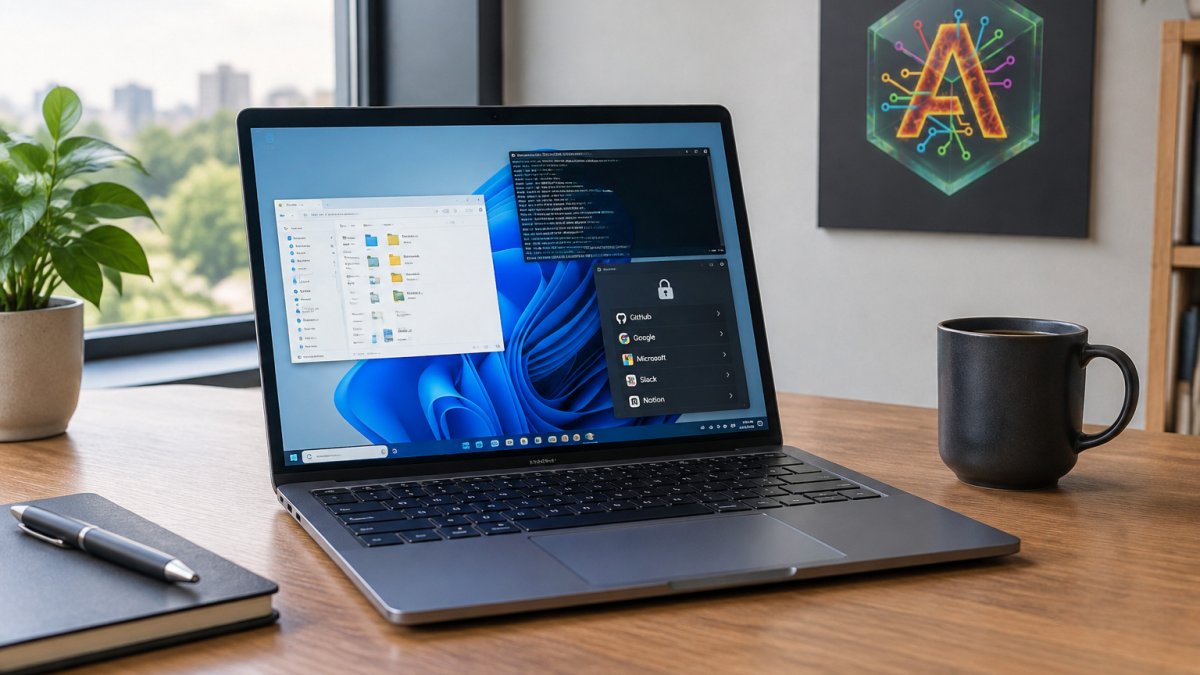
At Able, we build a Windows agent that does the work on the PC itself. Able can organize and find files, run terminal commands, and type vault logins after you say yes.
Is Local AI Actually Private? Separating Desktop Agents From Chat
Running a tool on your PC does not automatically make it private.
The useful question is which data leaves your machine, and when. A chat assistant sends your prompts to a cloud model. Able handles file and vault operations on your PC, and the AI model never sees the vault password.
For a deeper look at keeping AI-handled files protected, read How to Keep AI Files Private on Your Windows PC.
Local AI vs Cloud AI: Where Each Kind of Task Runs
Local AI and cloud AI split the work differently. Local tools run models on your hardware. Cloud tools run models on a provider's servers. Able sits in a middle position: its file, terminal, and vault work happens on the Windows PC, while its thinking is handled by rented cloud models.
| Task | Where it runs with Able | Needs internet? |
|---|---|---|
| Organize or find files | On the Windows PC | No |
| Run terminal commands | On the Windows PC | No |
| Type vault logins | On the Windows PC | No |
| Chat and research | Cloud models (Claude, Gemini, Grok, Kimi) | Yes |
The license is one-time from $79, and cloud thinking is paid for separately as fuel. Check the Able pricing section for current figures.
Can an Offline AI Assistant for PC Work Without Internet?
Partly. Able's file, terminal, and vault features work without a cloud brain. Chat and research do not, because they depend on cloud models.
So if you need a tool that works with no internet at all, Able is not that tool. It is also not Ollama, LM Studio, Jan, or Open Interpreter. You can read more about the category at Windows Desktop AI Agent.
AI Assistant That Can Organize Files: What to Test First
File organization is where a desktop assistant earns or loses trust fastest. A chat assistant that gives bad advice costs you a minute. A file agent that moves the wrong folder costs you an afternoon, or worse.
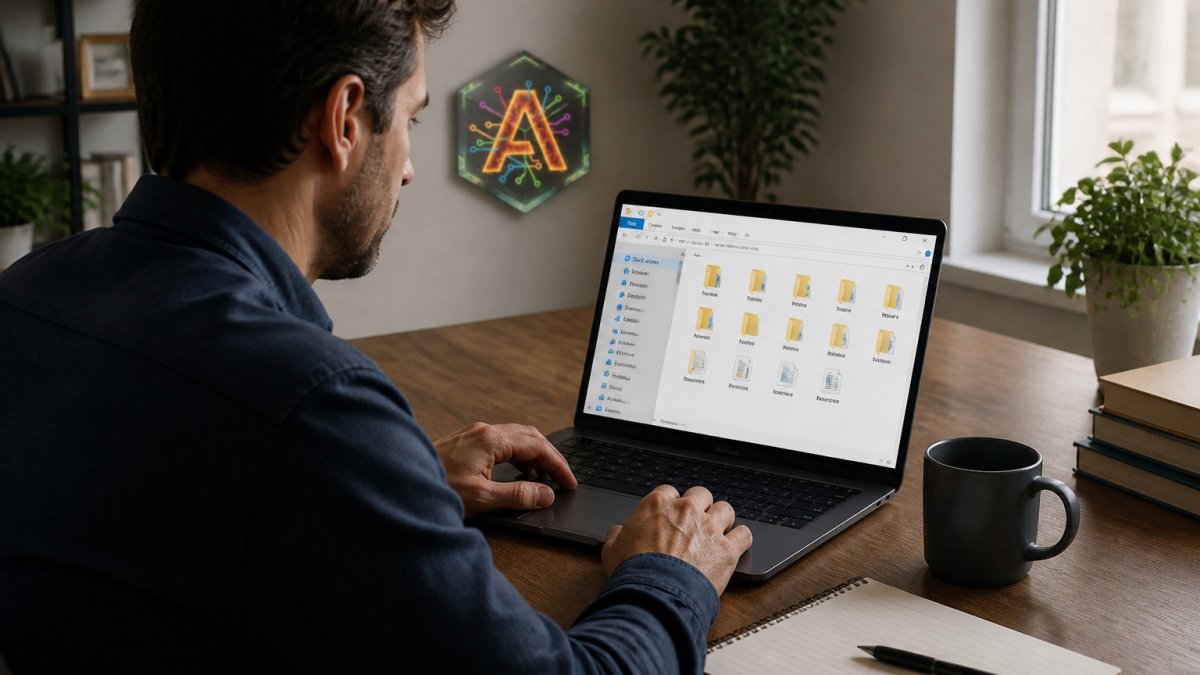
Able is built around an approval checkpoint: it runs jobs on the Windows PC only after the owner says yes. That checkpoint is your main safeguard, but it only helps if you use it well.
A four-step trust ladder for file organization
- Read-only pass. Ask the assistant to list the files in one folder without changing anything. Confirm it sees the same files you do, including hidden ones and subfolders. This is a low-risk way to check that the agent is pointed at the right place.
- Propose, then approve. Ask it to sort the folder into subfolders by type, but review the plan before you approve. A good agent shows you what it intends to move and where. If it cannot explain the plan, do not approve it.
- Single-folder move. Approve the sort on a folder you can afford to get wrong, such as Downloads. After it runs, spot-check that the files landed where the plan said. This is where you learn whether the agent's plan and its execution match.
- Find and verify. Ask it to find a specific file by name and confirm it returns the right one. Search is the least destructive feature and the easiest way to confirm the agent's view of your drive is accurate.
Failure modes to watch for
- Over-broad instructions. 'Clean up my whole drive' on day one is the classic mistake. Narrow instructions make mistakes easier to spot and reverse. Give Able one clear instruction at a time until you have seen how it behaves.
- Silent overwrites. If two files share a name, does the agent rename, skip, or overwrite? Ask before you approve a move that could collide.
- Destructive commands. Deleting files or shutting down the computer are consequential actions. Confirm that the agent asks before these, not after. Able's approval checkpoint is designed for exactly this, but you should still test it on a throwaway file.
- Scope creep. An agent asked to 'tidy up' may touch folders you did not name. Keep the instruction bounded to one folder until you trust the tool.
Recovery: what to do when a move goes wrong
Before you approve any large sort, make sure you have a way back. The practical safeguards are simple: keep a backup of the folder, or work on a copy, until you have seen the agent complete the same job correctly twice. Check whether the tool keeps an action log you can review, and whether moves can be reversed by moving files back.
What 'able' should mean for your files
The point of an agent like Able is that you are able to hand off the tedious sorting, finding, and terminal work without handing over control.
To limit what an agent can touch before you trust it fully, read How to Limit AI Agent Permissions on Your Windows PC, and for the privacy side of file handling, see How to Keep AI Files Private on Your Windows PC. When you are ready to run the four-step test yourself, start from the Able trial page.
Comparing Microsoft Copilot, Google Gemini, and Able on Your Windows PC
The question that often decides whether you keep a desktop assistant installed is: what happens when the assistant is wrong?
Here is a transparent way to compare Microsoft Copilot, Google Gemini, and Able on a Windows PC. We are not going to invent benchmark scores for products we have not tested side by side. Instead, this is the checklist we would run on each one, plus what Able does by design so you can hold it to the same standard.
The five-point desktop assistant test
- Scope of action. Can the tool only answer questions, or can it touch files, apps, and the terminal? Copilot and Gemini are general assistants reached through a chat surface; confirm their current desktop capabilities on each vendor's official site. Able is built as a Windows agent: it organizes and finds files, runs terminal commands, and types vault logins on the PC after you approve each job.
- Permission checkpoint. Does the tool act first and report later, or propose first and act after a yes? Able runs jobs only after the owner says yes, which is the single most important safeguard for file and terminal work. Ask the same question of any assistant before you let it near a real folder.
- Recovery from mistakes. If a file is moved to the wrong place or a command does the wrong thing, how do you undo it? Check whether the tool keeps a log of actions, whether moves are reversible, and whether destructive commands require a separate confirmation. A tool with no undo path is a tool you should only point at folders you can afford to lose.
- Where the data goes. Does the work happen on the PC, in the cloud, or both? Able splits it: file, terminal, and vault work runs on the Windows PC, while chat and research go to rented cloud models such as Claude, Gemini, Grok, or Kimi. The vault password is not handed to the model. Treat anything you type into chat as leaving your machine, whichever assistant you use.
- Total cost, not sticker cost. A subscription price is only part of the bill. Add usage caps, model or API costs, and whether local inference would require new hardware. Able is one-time Windows software with a license from $79, and cloud thinking is paid for separately as fuel, so heavy chat use costs more than light use. See the Able pricing section for current figures.
Side-by-side summary
| Criterion | Microsoft Copilot | Google Gemini | Able |
|---|---|---|---|
| Primary role | General AI assistant | General AI assistant | Windows desktop agent |
| File/terminal actions on PC | Depends on Windows integration and plan, confirm with vendor | Depends on desktop integration and plan, confirm with vendor | Yes, after owner approval |
| Permission checkpoint before acting | Confirm with vendor | Confirm with vendor | Yes, jobs run only after you say yes |
| Offline operation | Confirm with vendor | Confirm with vendor | Partly: file, terminal, and vault work without a brain; chat needs internet |
| Pricing model | Confirm current plan on vendor site | Confirm current plan on vendor site | One-time license from $79 plus cloud fuel |
If you mostly want chat, writing help, and research, a general assistant such as Copilot or Gemini may suit you, and you should compare their current plans directly. If you want an agent that acts on your Windows files and terminal after you approve each step, Able is the one built for that job, and the five-point test above is how to check that it earns the trust.
For the full picture of what Able is and is not, read why Able and the Windows Desktop AI Agent overview.
Starting Your Trial of Able on Windows
If you want to test Able on your own machine, the trial is the fastest way to start. It runs for 3 days with no card required, so you can try file organizing and chat before paying anything.
Start the trial from the Able trial page. Begin with the small file tasks described above, and check that each action matches what you approved.
Frequently Asked Questions
What is an AI desktop assistant?
An AI desktop assistant is software that runs on your computer and can act on it, not just answer questions in a browser tab. Able, a Windows 10/11 desktop agent from Apex Empire Inc., can organize and find files, run terminal commands, and type vault logins after you say yes. Chat and research still use cloud models such as Claude, Gemini, Grok, or Kimi over the internet, so the assistant needs internet for those tasks. Able is a one-time Windows license, with a 3-day trial and no card required.
Can an offline AI assistant for PC work without internet?
Partly. Able can organize, find, and vault-type tasks on the PC without a cloud brain, but chat and research require internet access because they use cloud models. Able is not Ollama, LM Studio, Jan, or Open Interpreter, which run local models. If you need a fully offline chat experience, a local model tool is a different product category. Able is the Windows file, terminal, and vault agent.
Is local AI actually private?
Running a model on your own machine and running a desktop agent are different things. Able keeps vault passwords out of the AI model's view: the model never sees the vault password, and Able types the login after you approve. Cloud chat still sends your prompts to the model provider over the internet. Check the privacy terms of any cloud brain you connect, and decide what you paste into chat accordingly.
Does Able work for people who are not technical?
Able is built for Windows 10/11 users who want an agent that does tasks on this PC after they say yes. The 3-day trial requires no card, so you can test your own folders and workflows before buying. The one-time license starts at $79.
Try Able for 3 days, no card needed. Get Able and see what an agent that acts on your Windows PC can do.