 How-to
How to Create a Windows App From a Plain English Prompt
Last Updated: November 10, 2026
Quick Summary
To create a Windows app from a plain English prompt, describe the platform, job, inputs, and output, then let an AI coding assistant generate the project files and code on your own PC. Review the code, preview and test it, fix breaks with follow-up prompts, and package it as an executable. A Windows agent like Able runs the build and terminal steps after you approve each one.
- Name the platform, job, inputs, and output in your first prompt sentence.
- Tell the AI which Windows technology you want or it usually guesses web.
- Read generated code for file operations, network calls, credentials, and error handling.
- Test edge cases like empty folders, read-only files, and long names before real data.
- Test the packaged EXE, not the project, since bundled dependencies behave differently.
Table of Contents
- What a Prompt-to-App Workflow Actually Looks Like on Windows
- Choosing an AI App Builder for Windows Without Getting Burned
- Plain English Coding Prompt Examples That Produce Real Windows Features
- From Prompt to Working App: Generate, Review, and Preview the Code
- AI-Generated Windows App Testing Before You Trust It
- How to Package a Windows App as an EXE and Ship It
- Try This Prompt-to-App Workflow on Your Own PC With Able
- Frequently Asked Questions
What a Prompt-to-App Workflow Actually Looks Like on Windows
Creating a Windows app from a plain English prompt is the practice of describing what you want the software to do, then letting an AI coding assistant generate the project files, code, and build steps on your own PC. At Able, we see this as a shift in who gets to build software: the operator who knows the job, not just the developer who knows the syntax.
Here is the honest split most guides skip. The prompt writes code. It does not run your machine, move your files, or hold your logins. That is a separate job, and it belongs to a Windows agent. Able is that agent, not a model runner. Able is not Ollama, LM Studio, Jan, or Open Interpreter. Those run local models. Able is the Windows file, terminal, and vault agent from Apex Empire Inc. Organize, find, and vault work without a brain. Chat needs the internet.
The workflow has five stages:
- Describe the app in plain English
- Generate and review the code
- Preview and test it
- Fix what breaks with follow-up prompts
- Package it as an executable
Each stage fails differently. Below, we walk through all five, with the prompt examples and the mistakes that cost beginners the most time.
Choosing an AI App Builder for Windows Without Getting Burned
The biggest mistake is picking a tool that builds web apps and assuming it ships a Windows desktop application. It usually does not. Most prompt-based builders produce a browser app. That is fine if a browser app is what you need.
Before you pick a tool, pick the Windows technology. The prompt you write is only as good as the stack it targets, and the three practical families behave very differently.
| Approach | What it produces | Best when | Trade-off to accept |
|---|---|---|---|
| Native desktop framework (C# / .NET with WPF or WinUI 3) | A true Windows .exe with native controls |
You need tray icons, hotkeys, file-system access, and a small install | Steeper code to review; Windows-only |
| Web-based desktop wrapper (Electron, Tauri) | A desktop window that runs a web UI | You already have web skills or want one UI across platforms | Larger install footprint (Electron bundles a browser engine); Tauri leans on the system webview instead |
| Python GUI (Tkinter, PySide) | A script-driven desktop app | The job is automation, file handling, or a quick internal tool | Packaging into a clean .exe takes extra work; runtime dependencies must be bundled |
A useful rule: if the app mostly moves files, watches folders, or runs commands, a native .NET app or a Python GUI is the shorter path. If the app is mostly forms and dashboards, a web wrapper gets you there faster.
Then ask three questions about the tool itself:
- What does it output? A web app, or a project you can package for Windows?
- Where does the code live? On your PC, or only in someone's cloud?
- Does it touch your machine? Generating code and running commands are different permissions.
We recommend separating those last two. If you are weighing Able against an AI code editor, the Able vs Cursor comparison lays out the difference plainly, and the Windows desktop AI agent page explains the split between what works without a brain and what needs the internet.
Watch out: a tool that advertises "no code" often means "no control." You still need to read the generated code before it runs, and you still need to know which framework it chose on your behalf.
Plain English Coding Prompt Examples That Produce Real Windows Features
Vague prompts produce vague apps. The fix is structure, not longer sentences.
A useful plain English coding prompt names four things: the platform, the job, the inputs, and the output.
Here is the template we suggest:
Build a Windows desktop app in C# with a simple window. It should watch a folder I choose and move any file older than 30 days into an Archive subfolder. Show a list of moved files and a button to undo the last move. Keep all data on this PC.
Compare that to "make me a file organizer." The second prompt gives the AI nothing to test against.
Three more examples that map to real Windows features:
- Clipboard tool: "A Windows app with a tray icon. When I press a hotkey, save the clipboard text to a dated text file in Documents."
- Batch renamer: "A Windows app that takes a folder path and renames every file to
YYYY-MM-DD-originalname, with a preview list before it runs." - Log watcher: "A Windows app that tails a log file and highlights lines containing ERROR in red."
Notice what each prompt does. It names the platform, the trigger, the data, and the visible result. That is what makes the generated code reviewable.
From Prompt to Working App: Generate, Review, and Preview the Code
Generation is fast. Review is where amateurs skip and professionals slow down.
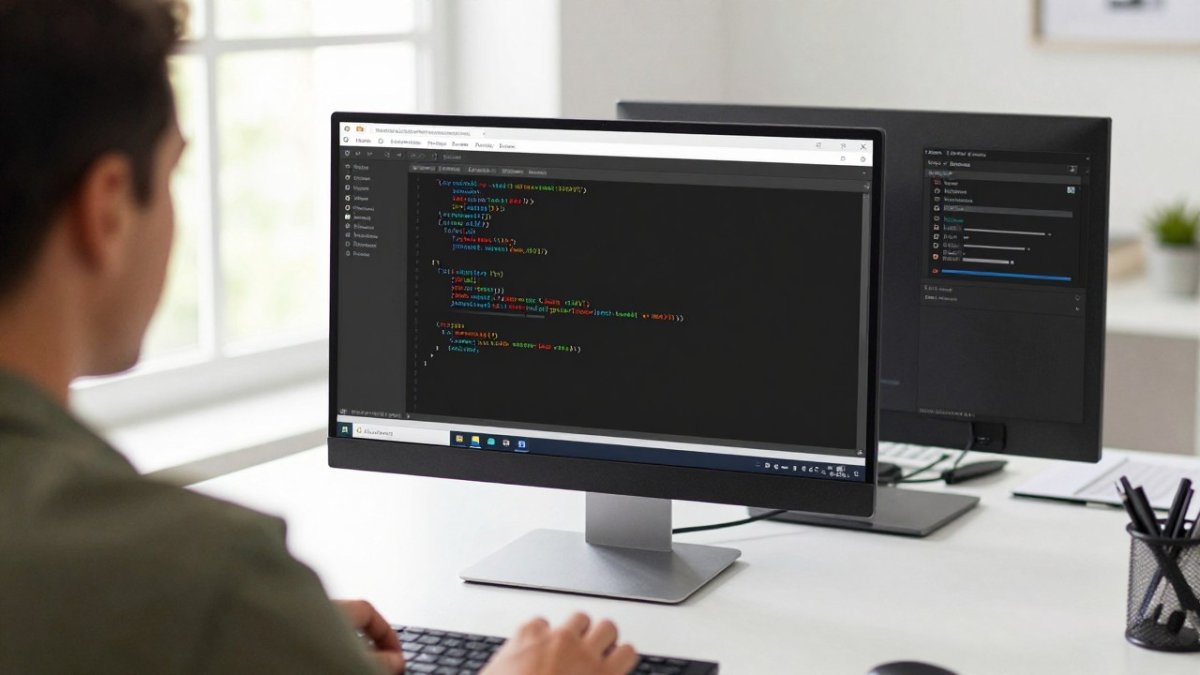
Read the generated code in this order:
- File operations. Any line that deletes, moves, or overwrites needs a clear reason.
- Network calls. If the app phones home and you did not ask it to, stop.
- Credentials. Passwords should never sit in plain text in source code.
- Error handling. A missing
tryblock means a crash on the first bad file.
Then preview. A sandboxed preview or live preview lets you click through the interface before you trust it with real data. Point it at a test folder first, never your actual Documents.
This is where a Windows agent earns its place. Able can run the terminal commands the build needs, after you say yes. The model never sees your vault password, because Able types it from the vault on this PC.
AI-Generated Windows App Testing Before You Trust It
Generated code passes the happy path and fails on the edges. Test the edges first.
Run these checks before you let the app near real files:
- Point it at an empty folder
- Point it at a folder with read-only files
- Feed it a file with a very long name
- Cancel the operation halfway through
- Close the window while a job is running
- Try a path with spaces and one with a non-English character
Each one is a common crash. Fix them with follow-up prompts, not by hand if you can avoid it.
Then lock down permissions. An app that can touch your whole drive should not. Scope it to one folder and add an approval gate for anything destructive. Our guide on how to limit AI agent permissions on your Windows PC shows how to set folder scoping and approval gates so the app can only touch what you allow.
Watch out: an app that runs fine on your machine can still fail on a colleague's PC because of a missing runtime. Note the dependencies now, not after you ship.
How to Package a Windows App as an EXE and Ship It
Packaging turns a project folder into a single executable someone can double-click. The steps differ by framework, but the shape is the same, and this is the stage most prompt-to-app guides skip entirely.
| Step | What you do | Why it matters |
|---|---|---|
| Set the build target | Choose Release, pick x64 | Debug builds are slow and bloated |
| Bundle dependencies | Publish self-contained | The app runs without a separate runtime install |
| Produce the EXE | Run the publish command | This is your shippable file |
| Test on a clean PC | Copy the EXE to another machine | Catches missing files early |
| Sign the binary | Add a code-signing certificate | Windows warns less on launch |
| Distribute | Zip it or use an installer | Match how your users expect to install |
The commands differ by stack. For a Python GUI, a tool like PyInstaller bundles the interpreter and your script into one .exe (What PyInstaller Does and How It Does It).
Code signing and SmartScreen. An unsigned .exe downloaded from the internet triggers a Windows SmartScreen warning, "Windows protected your PC", and most users stop there.
Installer versus portable. A zip is the simplest distribution: the user unzips and runs the .exe.
Updates. Decide now how a new version reaches users.
If your app runs terminal commands during build or install, review each one. Our walkthrough on how to automate terminal commands with local AI covers approval gates and command review so nothing runs on your PC unreviewed.
The one thing most guides miss: test the packaged EXE, not the project. They behave differently once dependencies are bundled, and a missing runtime or a path with spaces will only show up after packaging.
Try This Prompt-to-App Workflow on Your Own PC With Able
The gap between a prompt and a working Windows app is not the code. It is the machine work around it: moving files, running the build, holding the logins.
That is the job Able was built for. Able is a Windows 10/11 desktop agent from Apex Empire Inc., sold only at uable.store. It organizes files, runs the terminal, and types vault logins from Septaguard on this PC after you say yes. The model never sees the vault password. Chat and research use cloud brains over the internet, and fuel pays for that, so Able is not fully offline.
You can start with the 3-day no-card trial and run the whole workflow: prompt, review, preview, test, package. See what Able is and is not on the Windows desktop AI agent page.
The real test is whether you can take an idea you have described out loud and end the day with an executable on your desktop. That is the challenge. Able gives you the machine side of it: file moves, terminal commands, and vault logins, all after your approval. Get started with Able and turn your next plain English prompt into a Windows app you can actually ship.
Frequently Asked Questions
Can AI create a Windows app from a plain English prompt?
Yes, with a caveat. AI tools can turn a natural-language prompt into a working application prototype, but most prompt-based builders output web or mobile apps. Getting a native Windows app means choosing a Windows technology first, then having the AI generate project files, application logic, and a user interface you can run on your PC. Review the generated code and test the app before you package it.
How do I turn an AI-generated app into a Windows executable?
Once the app runs correctly in your development environment, you package it as a Windows executable. That means resolving dependencies, building a release configuration, and producing an EXE file you can distribute. Test the packaged build on a clean Windows machine, because a build that runs in your terminal may fail when the runtime is missing. Signing the executable helps Windows trust it.
How do I test an AI-generated Windows app before shipping it?
Test in layers: confirm the app launches, then check each feature against your original prompt, then try edge cases like empty inputs and large files. Use a sandboxed preview or a test folder so a bug cannot touch real data. Run the packaged EXE, not just the dev build, and watch the terminal for errors during startup.
Can I build a Windows app without knowing how to code?
You can get a working prototype without writing code by hand, but you still need to read what the AI produced and describe fixes in follow-up prompts. A Windows desktop agent like Able helps here: it runs the terminal and file steps on your PC after you say yes, so you can focus on requirements instead of setup. The trial is 3 days with no card, so you can test the workflow before buying.