 How-to
Is Able at uable.store a Windows AI Agent Worth Trying?
Quick Summary
Able at uable.store is a Windows 10 and 11 desktop agent from Apex Empire Inc. that organizes and finds files, runs terminal commands, and types vault logins only after you approve each job. It is not fully offline, since chat and research need a cloud model. A three-day trial with no card required lets you test it on your own PC.
- Able runs a job only after you review the plan and approve it.
- Organizing, finding, and vault work run without a cloud brain.
- The vault types logins so the language model never receives the password.
- Chat, research, and drafting need an internet connection and cloud fuel.
- The trial lasts three days and requires no credit card.
Table of Contents
- What Able Is and What It Is Not
- How Able Runs Jobs on Your Windows PC
- Able Offline Capabilities: What Works Without a Brain
- Able vs Ollama: Agent Versus Local Model
- How Vault Logins and Your Data Stay on This PC
- Pricing, Licensing, and the Able Trial
- Start Your 3-Day Able Trial
- Frequently Asked Questions
Is Able at uable.store a Windows AI Agent Worth Trying?
Last Updated: November 4, 2026
Able at uable.store is a Windows 10 and 11 desktop agent from Apex Empire Inc., sold only at https://uable.store. After you say yes, it organizes and finds files, runs terminal commands, and types vault logins on this PC. The language model never sees the vault password. Able is not fully offline, and it is not a local model runner like Ollama. This guide explains what Able does, what it does not do, and whether a three-day trial makes sense for your work.
What Able Is and What It Is Not
Able is a desktop agent, meaning software that acts on your Windows machine rather than inside a browser tab. It works when you approve a job. It moves files, runs terminal commands, and handles logins stored in its vault.
Able is not a chat model and not a local model runner. Tools like Ollama, LM Studio, Jan, and Open Interpreter run language models on your hardware. Able is the file and terminal agent that sits on top of cloud reasoning engines such as Claude, Gemini, Grok, or Kimi. Those engines are rented over the internet, and fuel pays for that usage.
The split matters. Organizing, finding, and vault work run without a brain. Chat and research need an internet connection and a cloud model.
How Able Runs Jobs on Your Windows PC
Able begins a job only after you confirm it. You describe the task in plain language, review what Able plans to do, and then approve it. Nothing runs silently in the background. Once approved, Able works directly on your files, folders, and terminal, and every step happens on the PC you are sitting at. To see how sensitive data is protected more generally, read how to protect sensitive data from AI models.
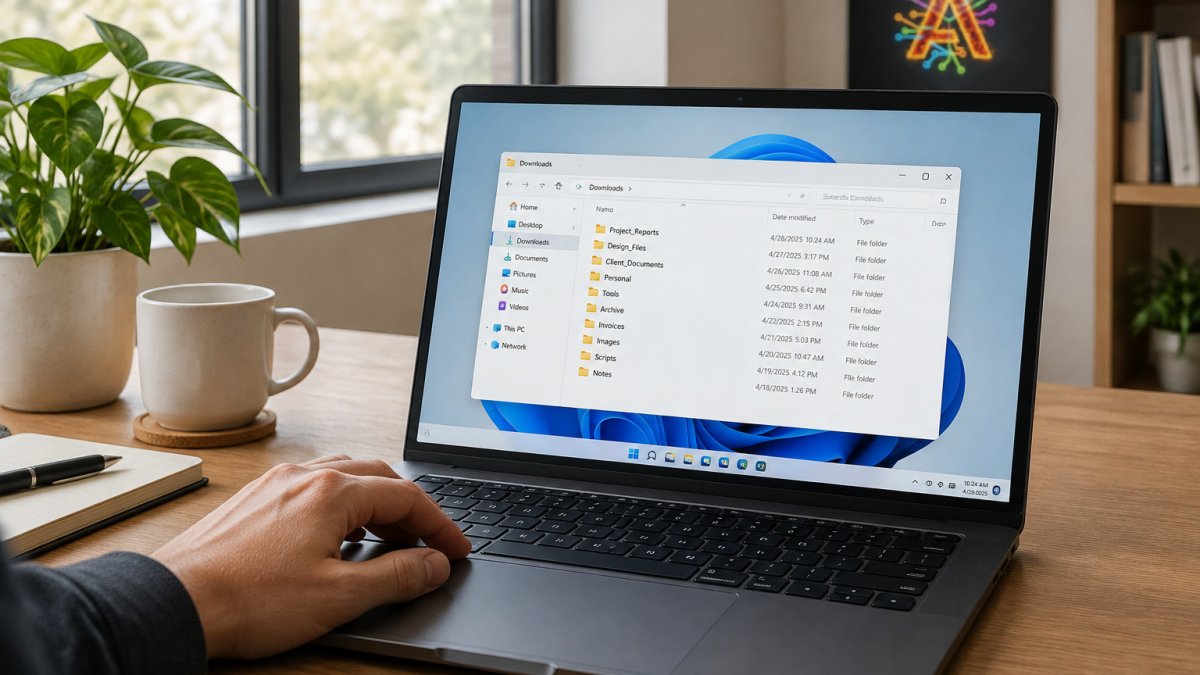
A concrete Able workflow, start to finish
The fastest way to understand Able is to run one small job end to end. A typical pattern looks like this:
- Describe the job. Tell Able what you want in plain language, for example: "Group the invoices in my Downloads folder by month and rename them with the vendor name first."
- Review the plan. Able shows you what it intends to do before touching anything. Read the plan. If a step looks wrong, adjust the request instead of approving it.
- Approve. Able runs the job on your PC. Files move in your normal folder structure, and you see the results where you already work.
- Check the output. Open the folder and confirm the naming and grouping match your conventions.
- Expand. Once a small job behaves, give Able a bigger one. This habit keeps you in control while you learn how Able handles your file naming and folder layout.
The same loop applies to terminal work and vault logins, which is what makes Able useful across a whole workday rather than for one narrow task.
File organization and downloads
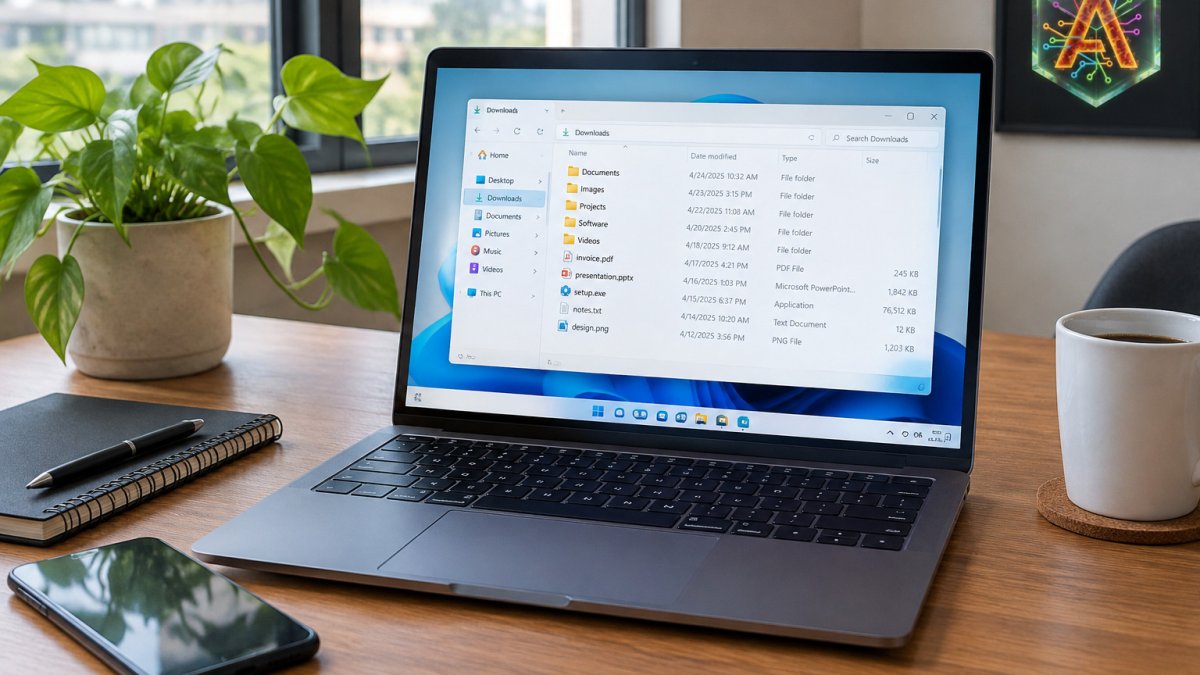
Able can sort a cluttered Downloads folder, group invoices by month, or find a document you half-remember. Because it works on real files, you see the results in your normal folder structure. Start with a single folder, approve a small job, check the result, then expand to bigger tasks.
Watch out: if your folder contains files you would not want moved, copy them to a test folder first and point Able at that copy until you trust the plan it produces.
Terminal commands and vault-typed logins
For terminal work, Able runs commands you have approved and reports the output. Routine tasks such as checking disk usage or moving build artifacts become single requests instead of a string of manual commands.
Logins are handled through the vault. Able types credentials from the vault into the target field, so the language model never receives the password. This is the practical privacy boundary: the model reasons about the task, while the secret stays in the vault on this Windows PC. If you want the fuller picture of how Able separates thinking from doing, see https://uable.store/windows-desktop-ai-agent/ and the trust page at https://uable.store/trust/.
Here is how a typical Able job moves from your request to a finished result on your PC.
| Step | What to do | Time or frequency |
|---|---|---|
| Describe the job | Explain the task to Able in plain language | Once per job |
| Review the plan | Read what Able intends to do before it acts | Before every approval |
| Approve | Confirm, and Able runs the job on your PC | Once per job |
| Check the output | Open the folder and confirm naming and grouping | After each job |
| Expand | Give Able a bigger job once a small one behaves | Gradually, over time |
Able Offline Capabilities: What Works Without a Brain
Many readers arrive with the phrase "Able offline" in mind. The accurate version is narrower.
Without a cloud brain connected, Able still handles:
- Organizing and renaming files in folders you name
- Finding files on the local disk
- Typing vault logins into forms and apps
Without an internet connection, Able cannot:
- Answer questions in chat
- Run research that depends on web sources
- Draft content that requires a cloud model
If your main need is a fully offline assistant that answers questions, a local model runner may fit better. If your need is moving files and running jobs on Windows, Able's split works in your favor. For a fuller description of the product category, see https://uable.store/windows-desktop-ai-agent/.
Able vs Ollama: Agent Versus Local Model
Ollama, LM Studio, and Jan are local model runners. You download a model, and it runs on your hardware to answer prompts. Open Interpreter gives a model access to your terminal. Able is a different kind of tool: an agent that carries out jobs on Windows and relies on rented cloud reasoning for thinking.
Pick Able when your work is repetitive file and terminal tasks with approval gates. Pick a local model runner when your requirement is that no data ever leaves the machine for inference. Able does not claim local-only AI execution, and that difference is important before you buy. For a side-by-side with another desktop agent, see Able vs Lapu AI.
How Vault Logins and Your Data Stay on This PC
The vault is the core of Able's privacy design. Before you rely on it, check whether local AI is actually private. Credentials live in the vault on this Windows PC. When a job needs a login, Able types the credential into the field. The cloud brain receives the task description and results, not the password.
Be clear about what this does and does not cover. You can see exactly what is and is not true about Able's security on the trust page. Chat, research, and drafting send prompts to cloud models over the internet, as any cloud AI does. The vault protects stored secrets from the model, but it does not make the whole workflow offline. Review what each job sends to the cloud before approving it, especially with confidential client material.
For a broader view of what local AI does and does not protect, read https://uable.store/notes/why-able/ and the trust page at https://uable.store/trust/.
Pricing, Licensing, and the Able Trial
Able uses a one-time Windows license, not a monthly desktop subscription. Fuel is separate: it pays for cloud thinking, because the reasoning engines Able rents (Claude, Gemini, Grok, Kimi) bill per use. Check https://uable.store/#pricing for current license options and what each tier includes.
What the license does and does not cover
A one-time license means you are not renting Able by the month. What it does not mean is that every Able job is free to run. Organizing, finding, and vault work run without a brain and do not need fuel. Chat, research, and drafting send prompts to a cloud model, and that is the part fuel pays for. If your work is mostly file and terminal jobs with occasional chat, your fuel use stays modest. If you lean on Able for research and drafting all day, plan for fuel to be a real line item. For the reasoning behind this split, read https://uable.store/notes/why-able/.
How to use the three-day trial well
The trial runs three days with no credit card required. Three days is short, so treat it as a focused evaluation rather than a tour of the interface. A practical plan:
- Day one: point Able at one messy folder, approve a small organizing job, and confirm the output matches your naming conventions.
- Day two: run a few approved terminal jobs and test one vault login so you see how Able types credentials without exposing them to the model.
- Day three: try a chat or research task so you feel where fuel is spent, then decide whether the license plus fuel model fits your budget.
Watch out: do not evaluate Able on a demo folder. The whole point of the trial is to see whether Able can handle your actual workflow, and a sanitized test folder will not tell you that.
If your daily work involves files, terminal commands, and repeated logins on a Windows PC, the one-time license plus fuel model is straightforward to reason about. When you are ready, start at https://uable.store/trial/ and run one real job before you decide.
Start Your 3-Day Able Trial
Able earns its place if your daily work involves files, terminal commands, and repeated logins on a Windows PC. Start with one small approved job, confirm the result, and expand from there.
Ready to test it on your own machine? Start your three-day trial at https://uable.store/trial/ and see whether Able can handle your actual workflow.
Frequently Asked Questions
What is Able at uable.store?
Able is a licensed Windows 10/11 desktop agent from Apex Empire Inc., sold at uable.store. After you say yes, Able can organize and find files, run terminal commands, and type vault logins on your PC. It is not a local AI model and not fully offline. Chat and research use cloud brains such as Claude, Gemini, Grok, or Kimi over the internet, and fuel pays for that thinking. You can start with a 3-day trial that needs no card.
Does Able work offline?
Partly. Able's file organization, finding, and vault work run on your PC without a cloud brain. Chat and research need an internet connection because they call cloud models. Able is not Ollama or LM Studio, so it does not run a local language model for you. If you need fully offline AI, Able is the wrong tool; if you need an agent that acts on your files, it fits.
Is Able a local AI model or a Windows desktop agent?
Able is a Windows desktop agent. It acts on this PC: it moves files, runs terminal jobs, and types vault logins after you approve. It does not host or train its own model. Cloud brains like Claude or Gemini do the reasoning for chat tasks, while Able does the execution on your machine. Tools like Ollama and LM Studio run local models, which is a different category.
How do I get started with the Able trial?
Go to uable.store, download the Windows installer, and start the 3-day trial. No credit card is required. Install it on a Windows 10 or 11 PC, connect a cloud brain for chat tasks, and try a file organization job first. When the trial ends, check https://uable.store/#pricing for one-time license options.